
Table of Contents
- 🔎 What AITable.ai Is and Why It Matters
- 💸 Pricing at a Glance
- 📁 Dashboard and Data Organization
- 📝 Build Forms and Capture Leads
- 🤖 No-code AI Agents and Chatbots
- 🧩 Custom Pages and Integrations
- ✅ Typical Workflows and Use Cases
- ⚖️ Pros and Cons
- 🛠 Quick Start: How I Set Up a Project
- 📌 Final Thoughts
- ❓FAQ
🔎 What AITable.ai Is and Why It Matters
AITable.ai is a no-code database platform that combines a visual spreadsheet with AI-powered automation and chat agents. It works like an intelligent version of Airtable: store CSV and Excel files, build forms, automate workflows, and add AI agents that read your data and generate content or answer questions.
I use it when I need a single place to organize project data, collect leads, and spin up AI assistants that help with customer service, sales, or content creation. It’s especially useful for small businesses and agencies that need automation without hiring developers.
💸 Pricing at a Glance
AITable.ai offers a tiered pricing model with a free tier for testing and paid plans for growing teams. The common paid plans mentioned are:
- Starter — around $18/month
- Plus — around $39/month
- Pro (unlimited seats) — around $79/month
The free tier is great for trying imports, basic tables, and forms, but features like advanced AI model options, higher automation limits, and seat-based collaboration require an upgrade.
📁 Dashboard and Data Organization
The workspace is folder-based, making it easy to keep different projects separate: SEO, social media, lead generation, client work, and so on. You can create folders and subfolders, rename them, and share them with teammates.
Importing data is straightforward: AITable.ai accepts CSV and XLSX. I usually export keyword lists or lead lists from other tools, then upload them into a dedicated folder and table. Once imported you can hide unnecessary columns, add new fields, or rename fields to match your workflow.
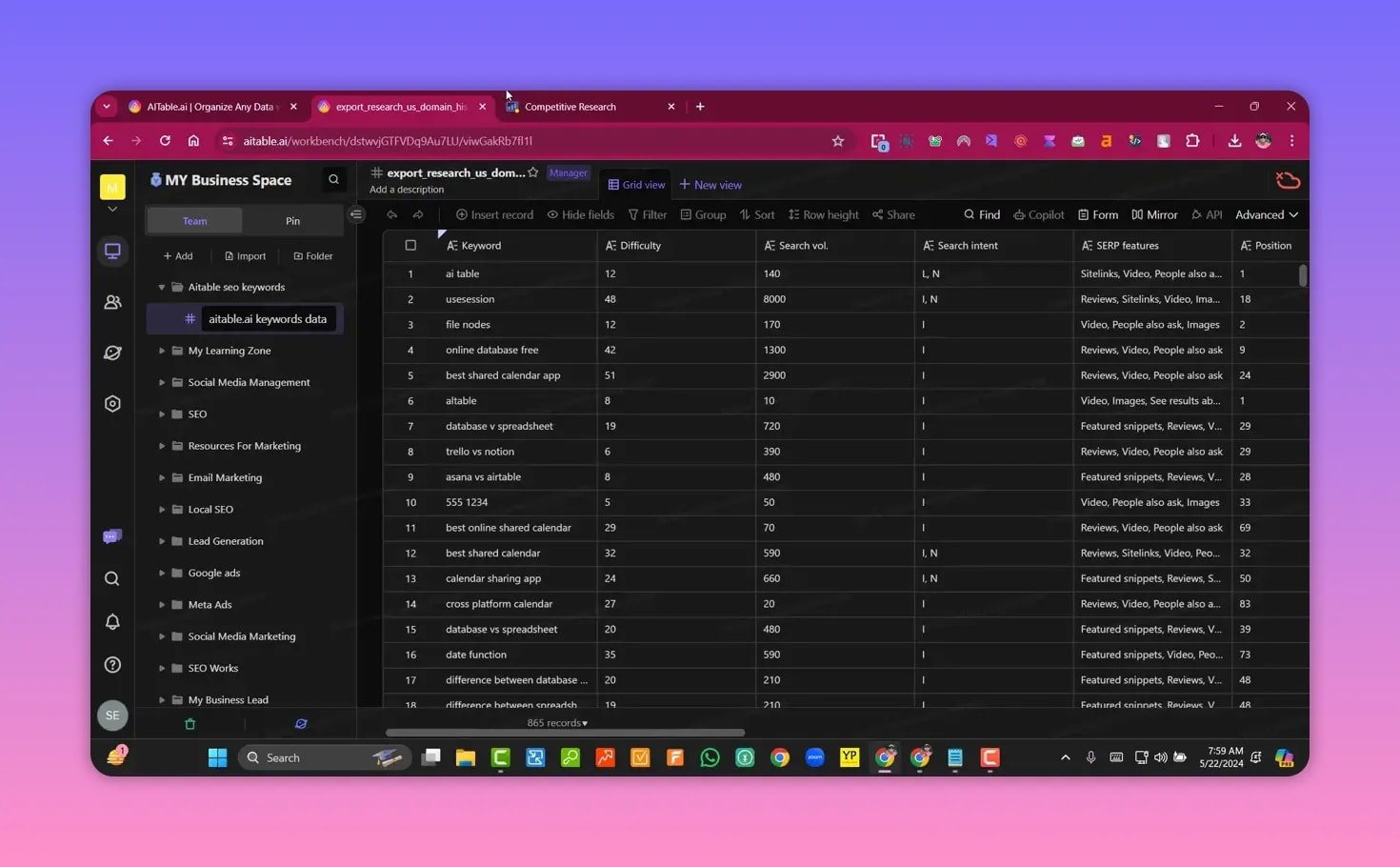
Use case example: I exported an 865-row keyword list and uploaded it to a new table named “AITable SEO keyword data.” From there I filtered, hid columns I didn’t need, and shared the folder with colleagues.
📝 Build Forms and Capture Leads
AITable.ai can turn any table into a public form for lead capture. Create the data fields in a table first, then convert the table into a form. You can set fields as required, allow multi-select answers, add a logo and cover image, and publish a shareable link or embed code.
Forms can be made public or require login. QR code sharing is supported, making it easy to capture leads at events or on physical collateral.

🤖 No-code AI Agents and Chatbots
One of AITable.ai’s standout features is the ability to create AI agents without code. These agents can be configured as chat bots, content writers, or domain-specific Q&A assistants that use your tables and documents as knowledge.
When creating an agent you choose:
- Agent type (chat, Q&A, writer)
- Mode (wizard or advanced)
- Model (GPT-4.0 was available in my setup)
- Temperature and other generation settings
I set an agent to GPT-4.0, adjusted temperature, and asked it to “write a 200-word blog article — best ways to make money online.” The agent produced a usable post instantly that I could refine and export.
🧩 Custom Pages and Integrations
Custom pages let you surface a mix of resources inside a workspace: uploaded documents, design files (Figma), videos, and embedded content. This keeps everything relevant to a project in one place.
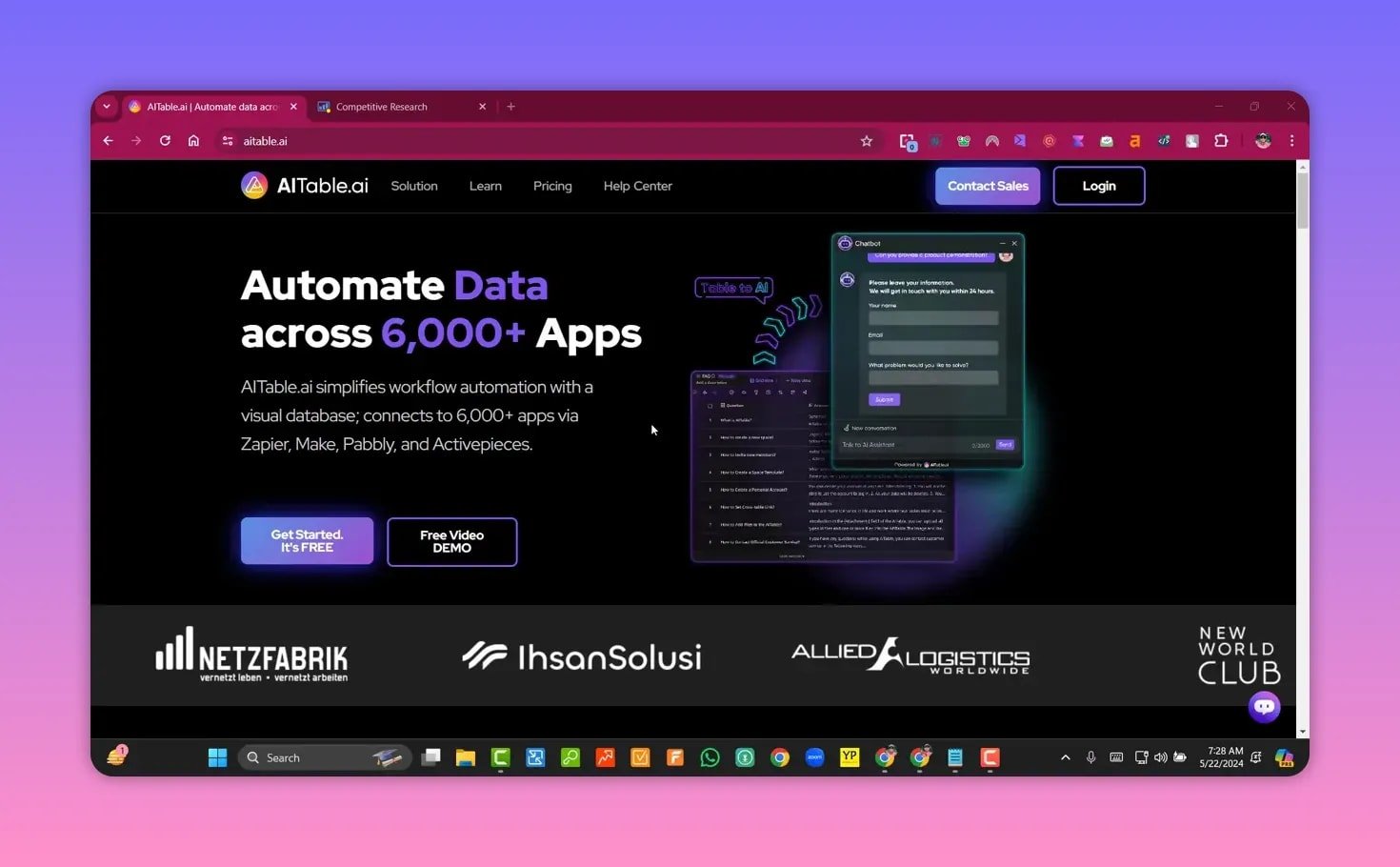
Integrations include Zapier (connect 6,000+ apps), public API access, and embedding options. That makes automating tasks like pushing form submissions into CRMs or triggering Slack notifications straightforward.
✅ Typical Workflows and Use Cases
- SEO projects: upload keyword exports, tag intent, and assign tasks to writers or SEO specialists.
- Lead capture: build forms, publish links or QR codes, and automate follow-up via Zapier.
- AI-driven content: spin up an AI agent to generate short posts, captions, or blog drafts using your prompts.
- Customer support: create a Q&A agent trained on your product FAQs and documentation to answer customer queries.
⚖️ Pros and Cons
Pros
- Clean folder-based workspace that mirrors real project structure.
- No-code AI agents that connect directly to your data.
- Form builder with public links and embedding options.
- Zapier and API integrations for wide automation possibilities.
- Ability to hide or rename fields for tidy tables.
Cons
- Free tier has limitations; heavy users will need a paid plan.
- Advanced AI features (higher model choice, more generation credits) may require higher tiers.
- User interface and labeling could be clearer in some places for first-time users.
🛠 Quick Start: How I Set Up a Project
- Create a folder for the project (SEO, leads, etc.).
- Import your CSV/XLSX into a new table and rename fields to match your needs.
- Hide irrelevant columns and add any new custom fields.
- Convert a table into a form to collect leads and publish the share link or embed.
- Build an AI agent, choose GPT-4.0 (if available), adjust temperature, and provide a prompt.
- Connect automations via Zapier or API to push data to other tools.
📌 Final Thoughts
AITable.ai is a compelling Airtable alternative for teams that want built-in AI and no-code automation. It combines familiar spreadsheet-style management with modern AI agents and form-based lead capture. For agencies and small businesses looking to centralize data, automate routine tasks, and add AI-powered assistants, it is worth testing on the free tier and then upgrading as needs grow.
❓FAQ
What file types can I import into AITable.ai?
AITable.ai supports XLSX and CSV imports. Export your data from other tools in one of those formats and upload directly into a new table.
Is there a free plan and what are its limits?
Yes, there is a free tier for testing core features like creating tables, basic forms, and limited AI usage. Advanced options and larger team seats require a paid plan.
Can I build an AI chatbot without coding?
Yes. AITable.ai lets you create no-code AI agents that act as chatbots or content writers. You configure the agent, choose model settings, and connect the agent to your data.
Which AI models are available?
The platform supports modern models such as GPT-4.0 (when available in your account). You can adjust temperature and generation settings to control output style and creativity.
How do I share tables and forms with my team?
Share folders or individual tables via the workspace share options. Forms can be published with a public link or embedded in websites. You can also generate QR codes for easy access.
Can AITable.ai connect to other apps?
Yes. Integrations include Zapier (6,000+ apps), public API endpoints, and embedding options to automate workflows and sync data with external tools.