Table of Contents
- 🚀 Why AI plus automation frees up your time
- 🧩 What Softr Workflows gives you
- 🔧 Core building blocks of a workflow
- 🧠 Step-by-step: Building an AI lead qualifier
- ⚙️ Helpful workflow features and tips
- 🔒 Best practices before you flip the switch
- 📈 Real outcomes you can expect
- ❓ FAQ
- 💡 Final thoughts
🚀 Why AI plus automation frees up your time
I focus my time on important work, not repetitive busywork. An AI lead qualifier does exactly that: it decides whether an incoming contact is a good fit, a scam, or somewhere in between, then takes action so you never have to babysit every submission.
The result is simple: reserve human attention for the highest-value opportunities and let AI handle the rest. That’s the kind of leverage that turns a noisy inbox into a reliable pipeline.
🧩 What Softr Workflows gives you
Workflows is Softr’s built-in automation layer. It lives next to your apps and database, so you cut out an external
automation platform and one more point of failure. Triggers, branching logic, AI actions, third-party calls, email
sending, Slack notifications — all inside the same product.
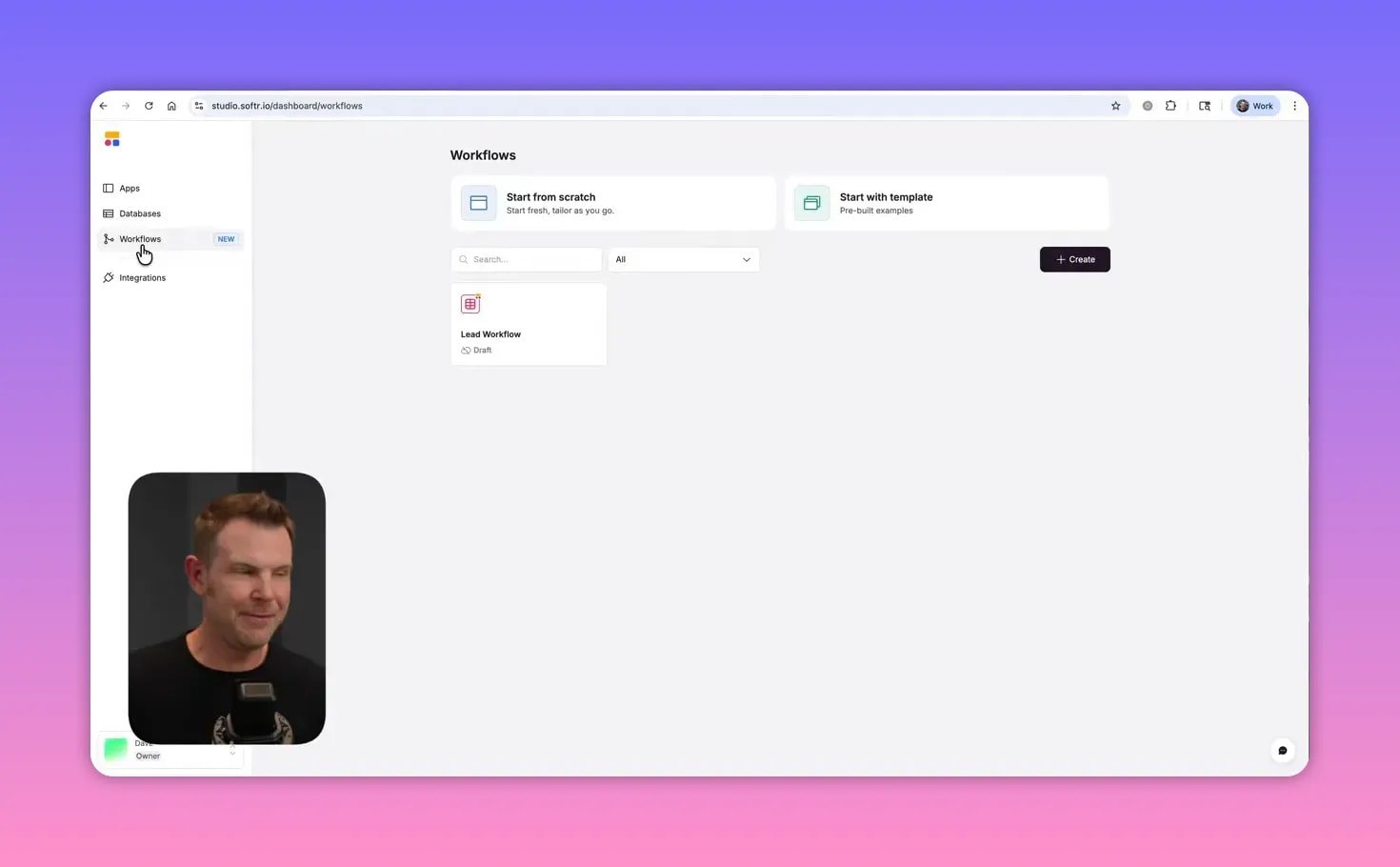
Because the data is native to Softr, workflows run fast and reliably. You can use Softr AI (Claude, OpenAI, or other supported models) directly within a workflow, or wire in your own OpenAI key when you prefer.
🔧 Core building blocks of a workflow
- Triggers — events that start the automation (record added, updated, deleted, or conditional).
- Actions — what runs after the trigger: AI prompts, emails, API calls, delays, loops, and database updates.
- Branches — conditional paths so different outcomes get different handling.
- Integrations — built-in connectors plus the ability to call any API or run custom code.
Templates are a helpful way to learn what’s possible, but once you get comfortable you’ll probably build from scratch to match your business rules.
🧠 Step-by-step: Building an AI lead qualifier
Here’s the workflow I use to triage leads for a web development agency. The goal is to automatically score each submission, follow up appropriately, update the CRM, and surface high-value leads immediately.
1. Trigger: record added
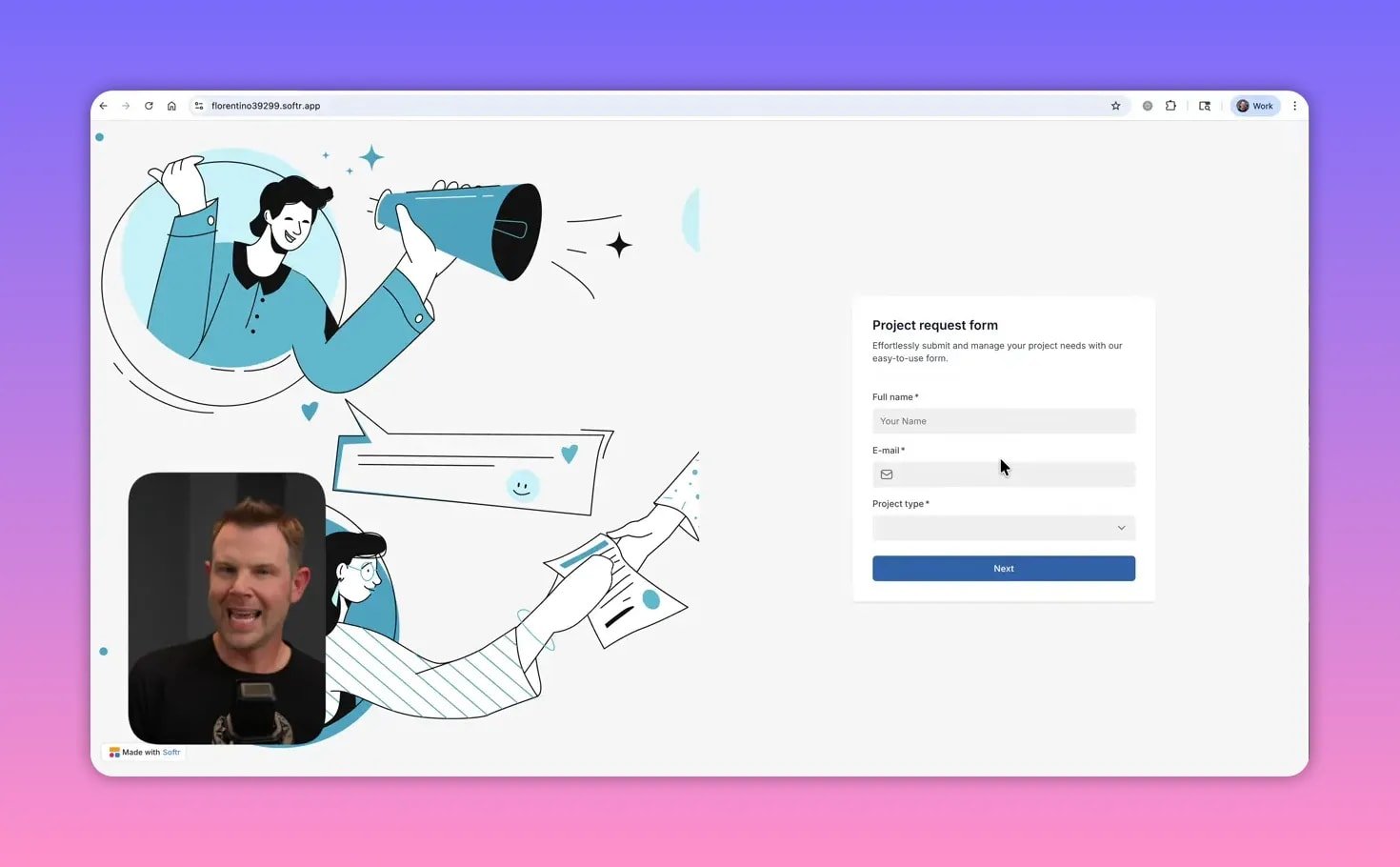
The automation starts when a form submission becomes a new record in the Softr database. That single event kicks off everything else.
2. Use AI to score and validate
I send the submitted form fields into a single, carefully crafted AI prompt that:
- Validates company legitimacy (detects spam or fake domains).
- Scores communication quality and realism of expectations.
- Assesses project complexity, budget alignment, and timeline pressure.
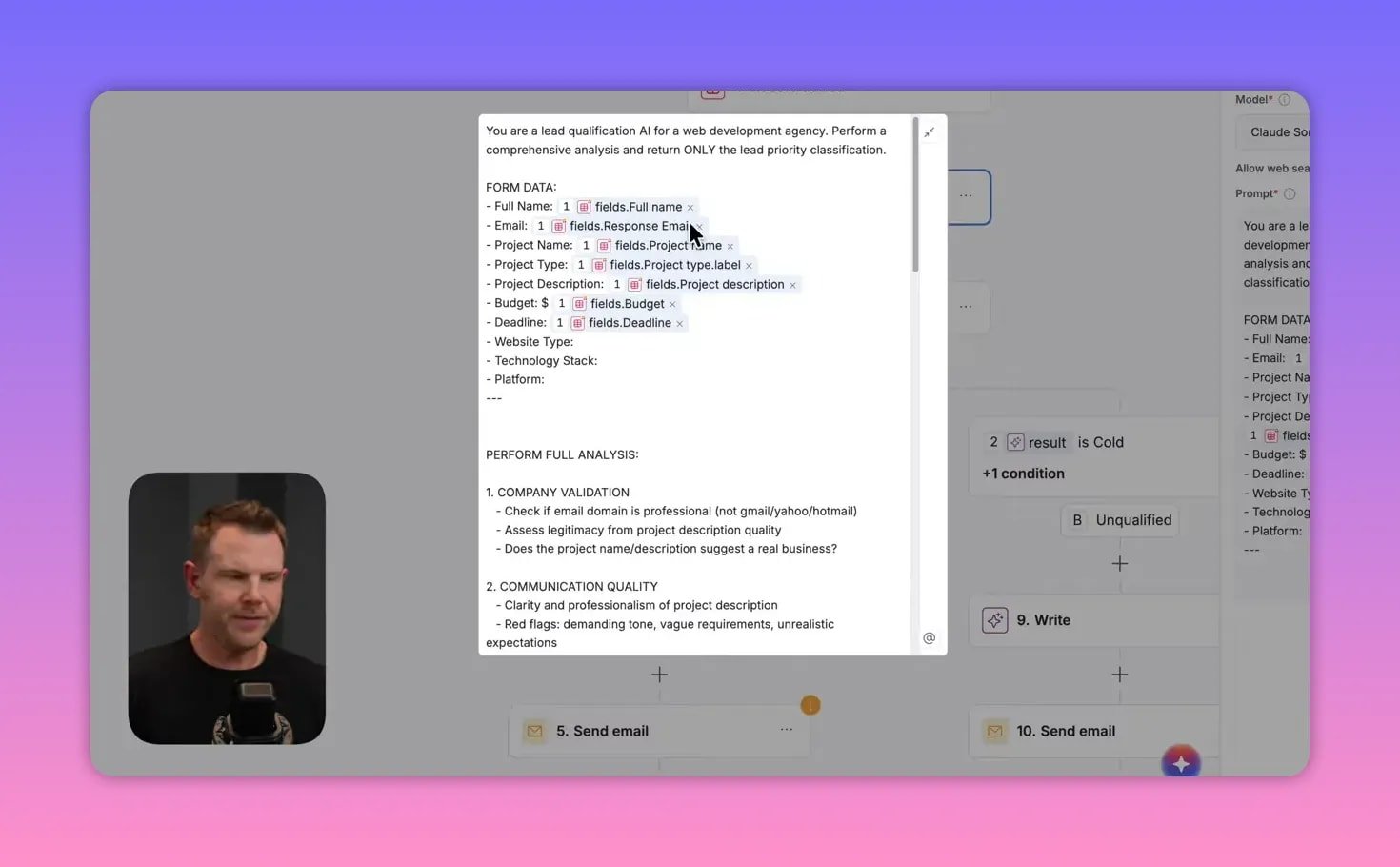
The prompt returns only a lead priority classification that the workflow uses for branching. I iterate the prompt until the AI reliably classifies leads the way I expect.
3. Map your form and scoring logic
Map dynamic form fields into the AI prompt so each evaluation is specific to that lead. Behind the scenes I also use a
scoring formula and override rules for obvious red flags like invalid domains, unrealistic budgets, or impossible timelines.
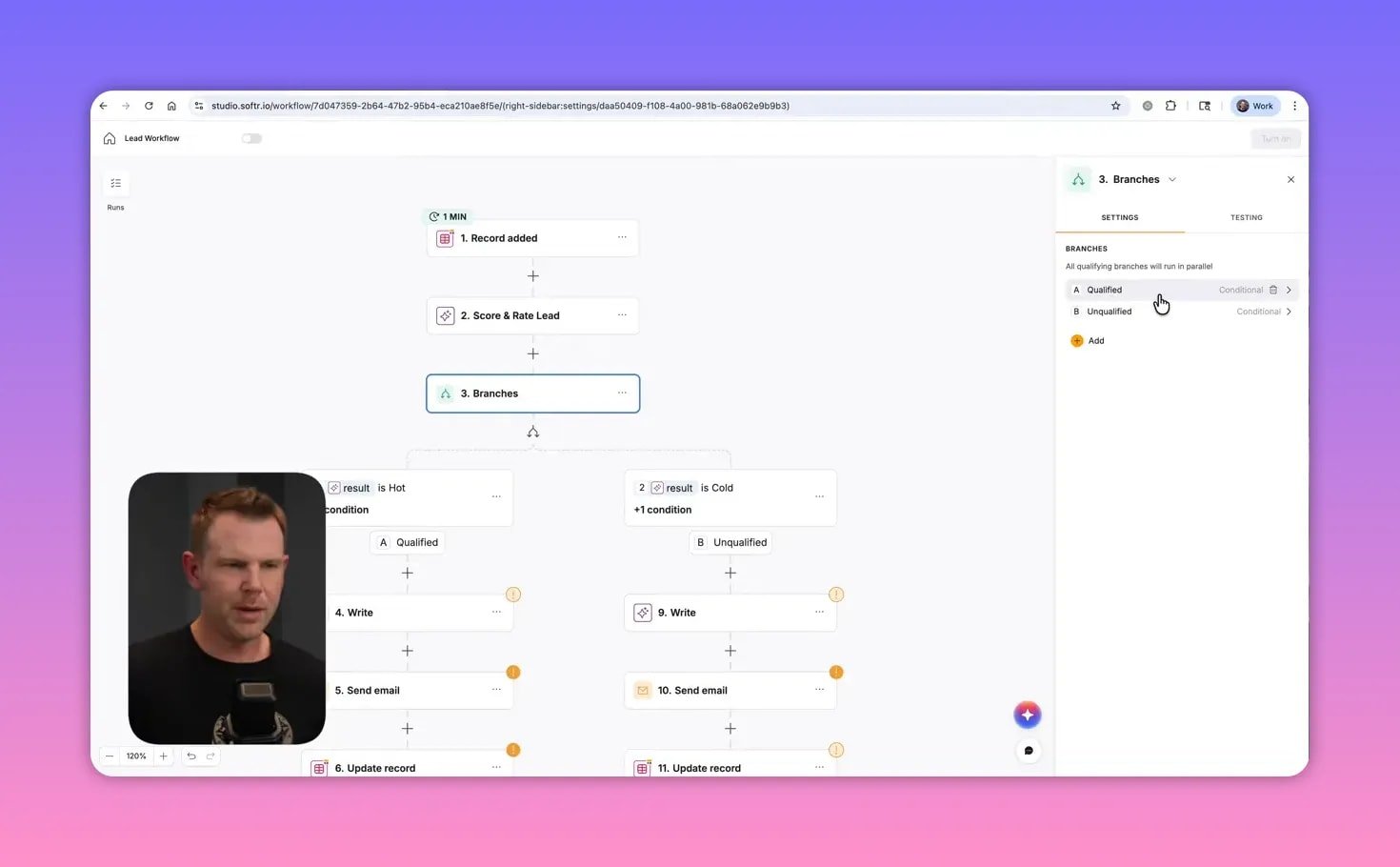
4. Branch by quality
Based on the AI result, route the record down different paths. You can have as many branches as you want (hot, warm,
cold, unqualified). My demo uses two main branches: qualified (hot or warm) and unqualified (cold or unqualified).
5. Automatic follow-up email
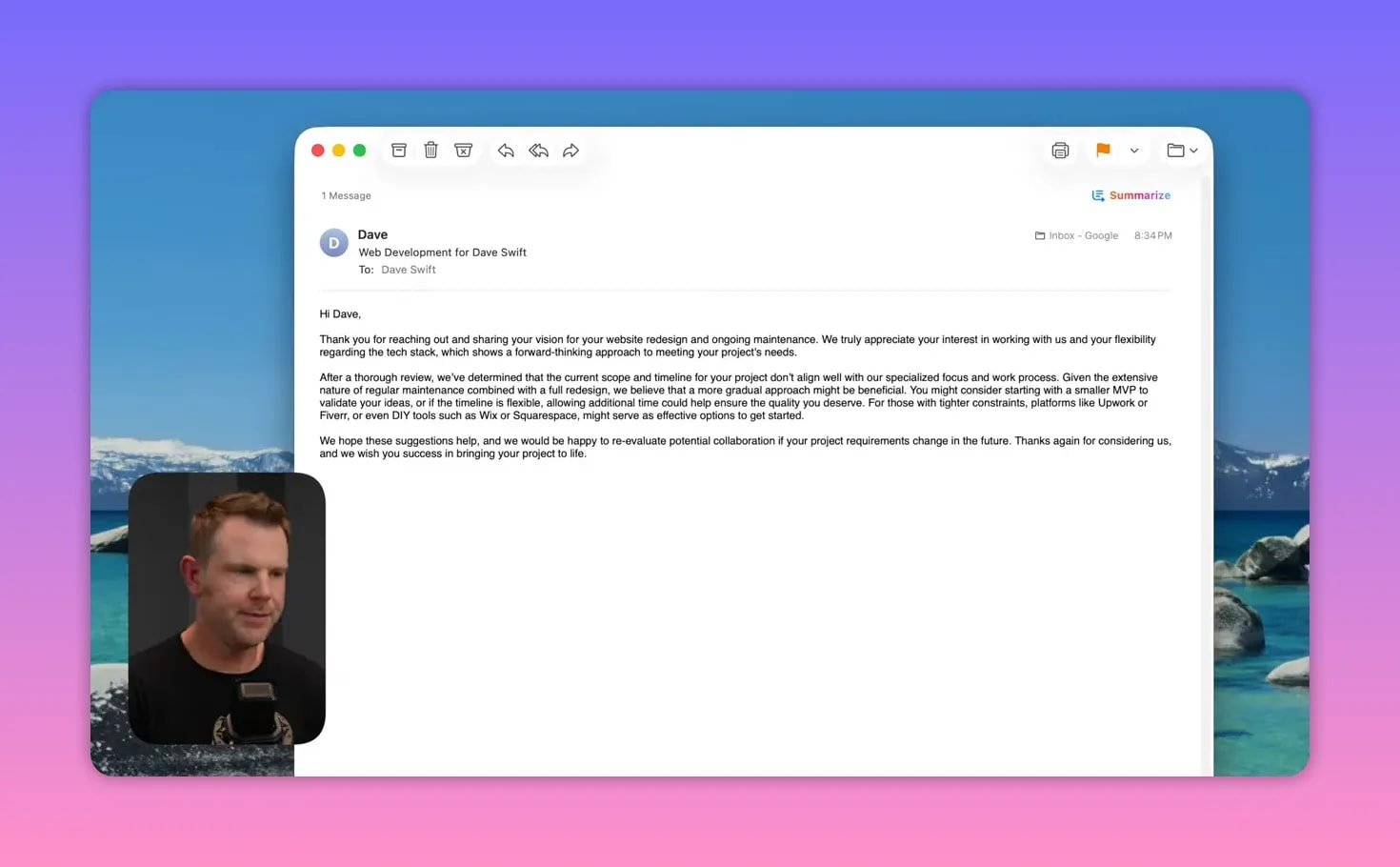
Each branch uses AI to craft a response. For qualified leads the email is encouraging and action-oriented. For
unqualified leads the email is polite, explains the mismatch, offers alternatives, and leaves the door open for future contact.
You can send via Gmail, Postmark, or Softr’s SMTP. I recommend adding a short randomized delay (for example 3.3 hours) so responses feel human and considered rather than instant and robotic.
6. Update the database record
After emailing, update the original record with the lead status, score, and any notes the AI produced. Use the record ID from the trigger so you modify the same entry instead of creating a new one.
7. Surface high-value leads immediately
For qualified leads above a budget threshold (for example $15,000) add a Slack notification to the owner with a custom summary and call-to-action: pick up the phone now. That way you never miss a time-sensitive opportunity.
⚙️ Helpful workflow features and tips
- Native AI models — use Softr AI (Claude, OpenAI) included in the platform or plug your own API key.
- Custom code — if you need a non-standard integration, run a snippet of code inside the workflow.
- API calls — many external services can be called directly even if a dedicated integration is not available.
- Testing — run the built-in tests using demo data and clear any warning marks before publishing.
- Run logs — review each workflow run to audit behavior and catch anomalies early.
🔒 Best practices before you flip the switch
Treat automated decisions like employee training. Test thoroughly, refine prompts, and monitor runs. Add guardrails for false positives and confirm high-value triggers (like large budgets) with a human when appropriate.
Keep response timing realistic, preserve politeness for rejections, and always leave a path for future contact.
📈 Real outcomes you can expect
When you set up an AI lead qualifier correctly you should see:
- Faster response to hot leads and fewer missed opportunities.
- Lower time spent triaging low-quality or spammy submissions.
- Consistent, professional follow-ups without hiring extra staff.
- Clear tracking inside your CRM of which leads were handled automatically and which require human follow-up.
❓ FAQ
Can Workflows send email on my behalf?
Yes. Workflows supports connecting Gmail, Postmark, or your own SMTP. Map the AI-generated body into the email node and test with demo data before sending real messages.
Do I need an OpenAI API key to use AI in workflows?
Not necessarily. Softr includes built-in AI access so you can use supported models without an external key, but you can also connect your own OpenAI key if you want full control over billing or model selection.
What if a lead is misclassified by the AI?
Use logs and review runs to catch misclassifications. Adjust the prompt, add override rules, or require a human confirmation for edge cases like unusually large budgets or unclear descriptions.
Can I integrate services that aren’t listed in the connectors?
Yes. You can call external APIs or run custom code inside a workflow. Many integrations are possible with a little API work or an AI-assisted code snippet.
Is my data stored in Softr?
When you use Softr’s database, the form data and any workflow updates are stored natively inside Softr. That tight integration is what makes workflows fast and reliable.
💡 Final thoughts
The combination of native databases, AI, and an integrated automation layer changes how you handle inbound leads. You can automate scoring, follow-ups, and notifications while keeping humans focused on the conversations that matter.
If your goal is to stop letting low-value tasks eat your day and to respond to high-value opportunities instantly, building an AI lead qualifier inside Softr Workflows is a practical, low-friction way to get there.