Table of Contents
- 🧰 What Weshop AI actually does
- 🧩 How to create an AI model (step-by-step)
- 💡 Tips for getting realistic results
- 🔧 The time-saving tools that matter
- ⚙️ Typical workflow for an e-commerce product
- 💳 Pricing, credits and who should buy it
- ✅ Pros, ❌ Cons and my verdict
- ❓ Frequently asked questions
🧰 What Weshop AI actually does
If your product photos feel flat or expensive to produce, Weshop AI is a practical shortcut.
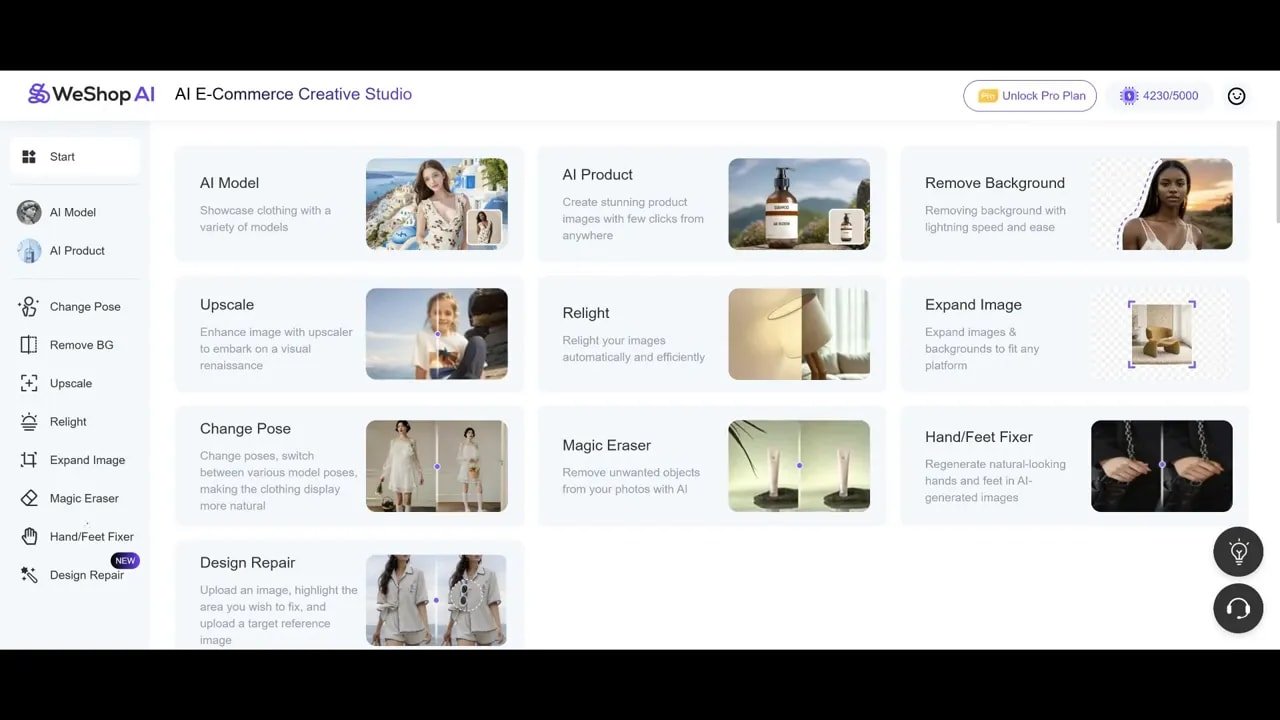
It is an AI creative studio built for e-commerce: generate realistic AI models, swap backgrounds, change poses, fix hands and feet, upscale images, relight shots, erase distractions, expand canvases, and even create short AI videos.
The interface groups these tools on the left and context options on the right so you can move from one tool to the next quickly.
🧩 How to create an AI model (step-by-step)
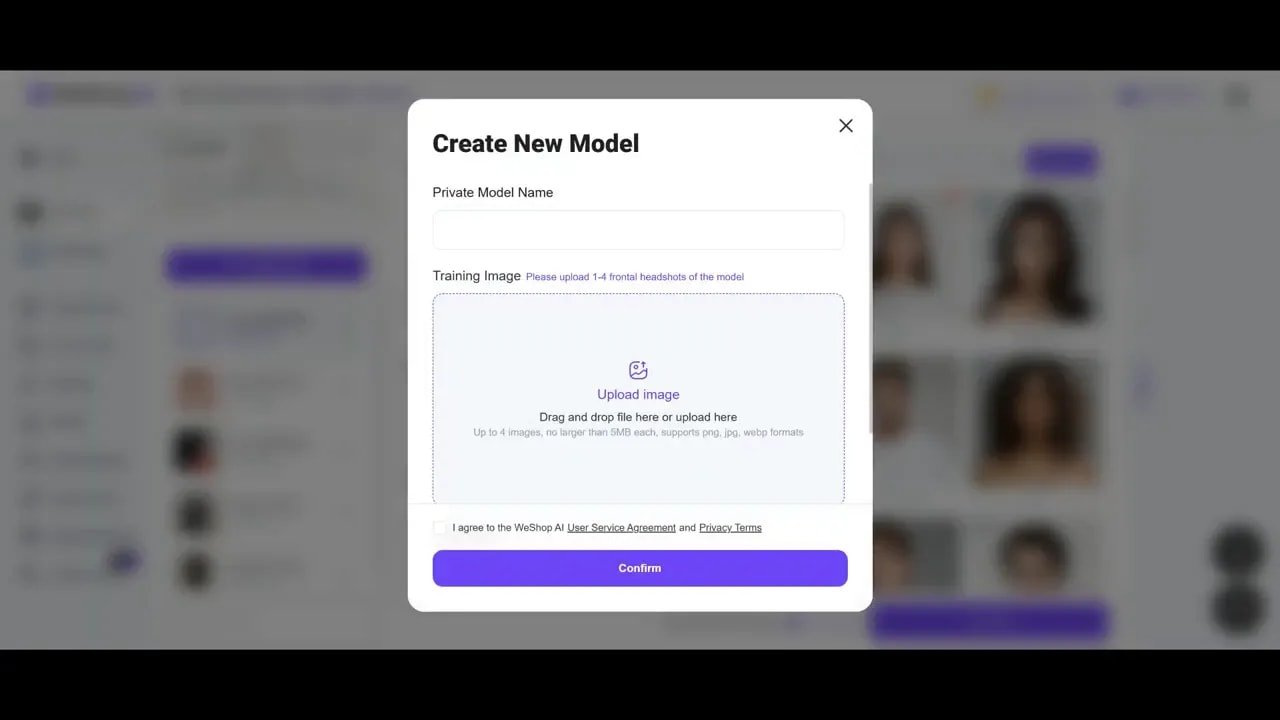
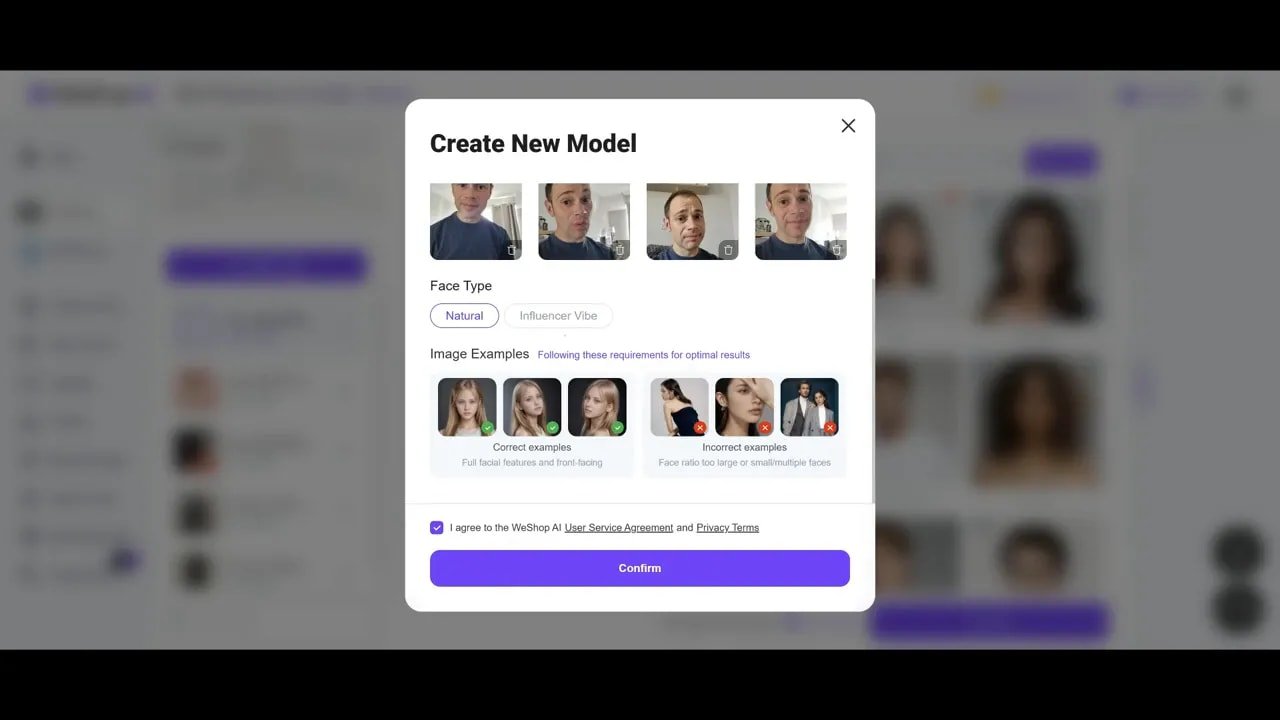
Create a custom model by starting a New Task and uploading headshots. For best results upload multiple, high-quality images — more inputs usually equals more accurate outputs. Supported formats include PNG, JPG and WebP; when creating a model you can pick a face type (Natural or Influencer vibe) to tune the look.
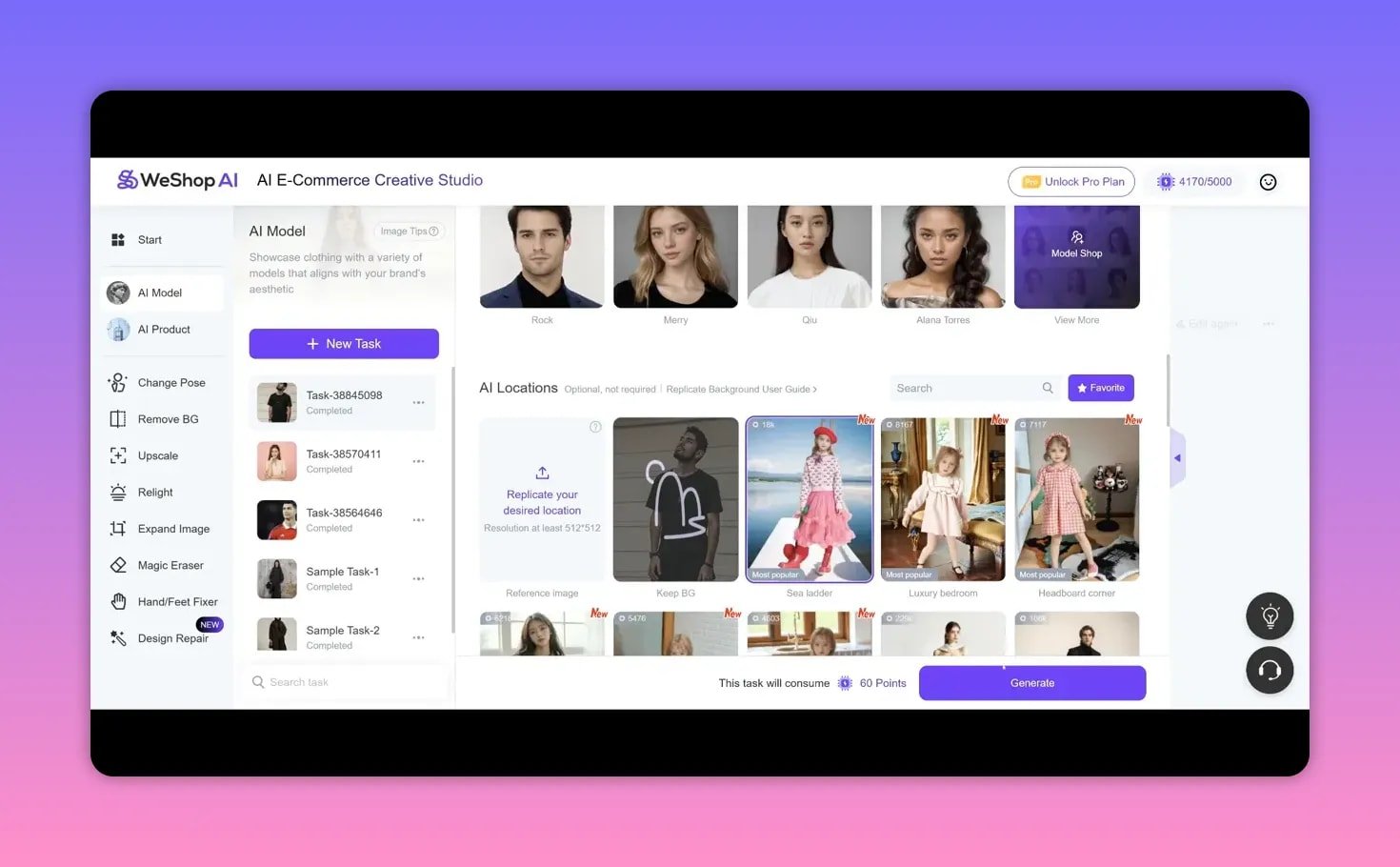
Once the model is built you can drop any product image in, tell the system what to keep (for example keep the shirt, watch and necklace), and generate variations that swap heads, adjust arms, or place the model in different scenes.
💡 Tips for getting realistic results
- Use good source photos — frontal, well-lit headshots and correct aspect ratios improve accuracy.
- Upload multiple angles — the AI gets more consistent when it has several reference images.
- Adjust pose percentage — 0% preserves the original pose, 50% nudges it, and 100% creates a free pose.
- Try skin detail and composition settings to fine-tune appearance and how the model fits into a reference background.
- Resize location images to at least 512 x 512 pixels before upload so the platform can match composition cleanly.
🔧 The time-saving tools that matter
Here are the practical tools I use repeatedly and when to reach for them.
Change Pose
Lets you create alternative poses from the same base image. Useful for producing multiple lifestyle shots without reshoots.
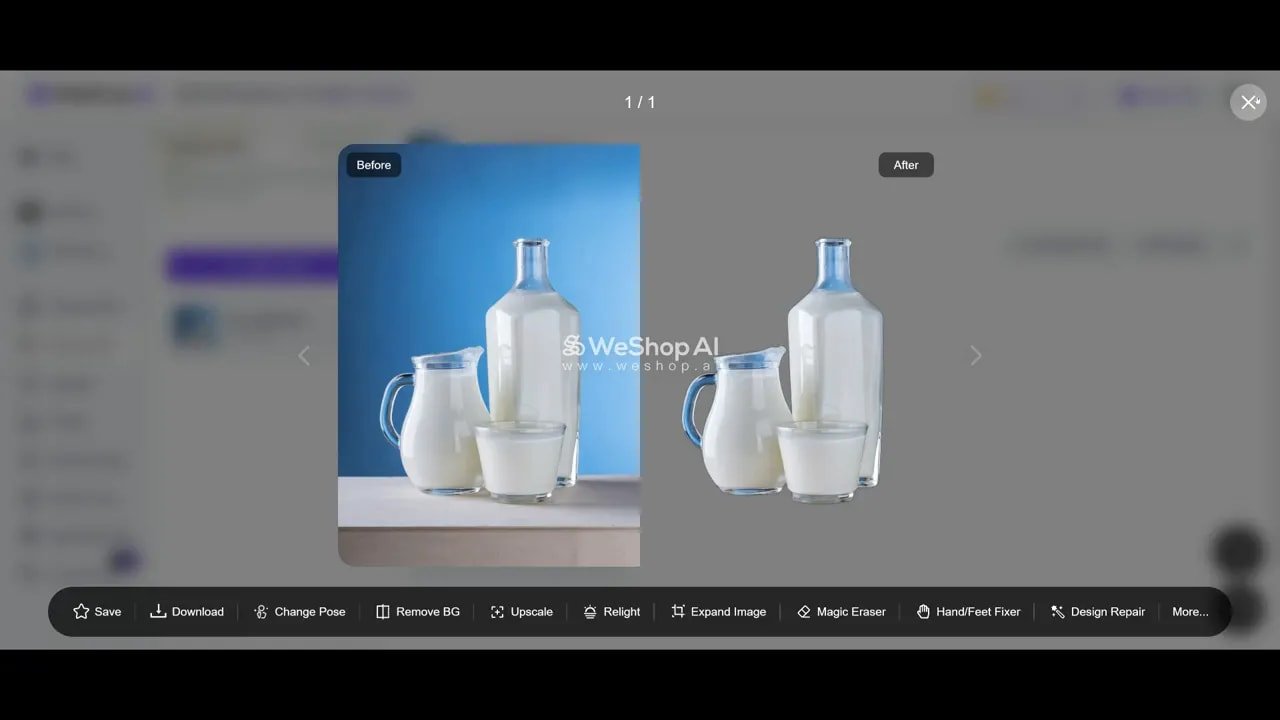
Remove Background
Fast, accurate background removal with options for transparent, solid color, or new scene placement. A single remove background task can be low-cost and opens the door to placing products in multiple commercial scenes.
Upscale
Sharpen and increase resolution (x1, x2, x4 depending on the image). Great for product close-ups, packaging shots, and when you need crisper detail for thumbnails or ads.
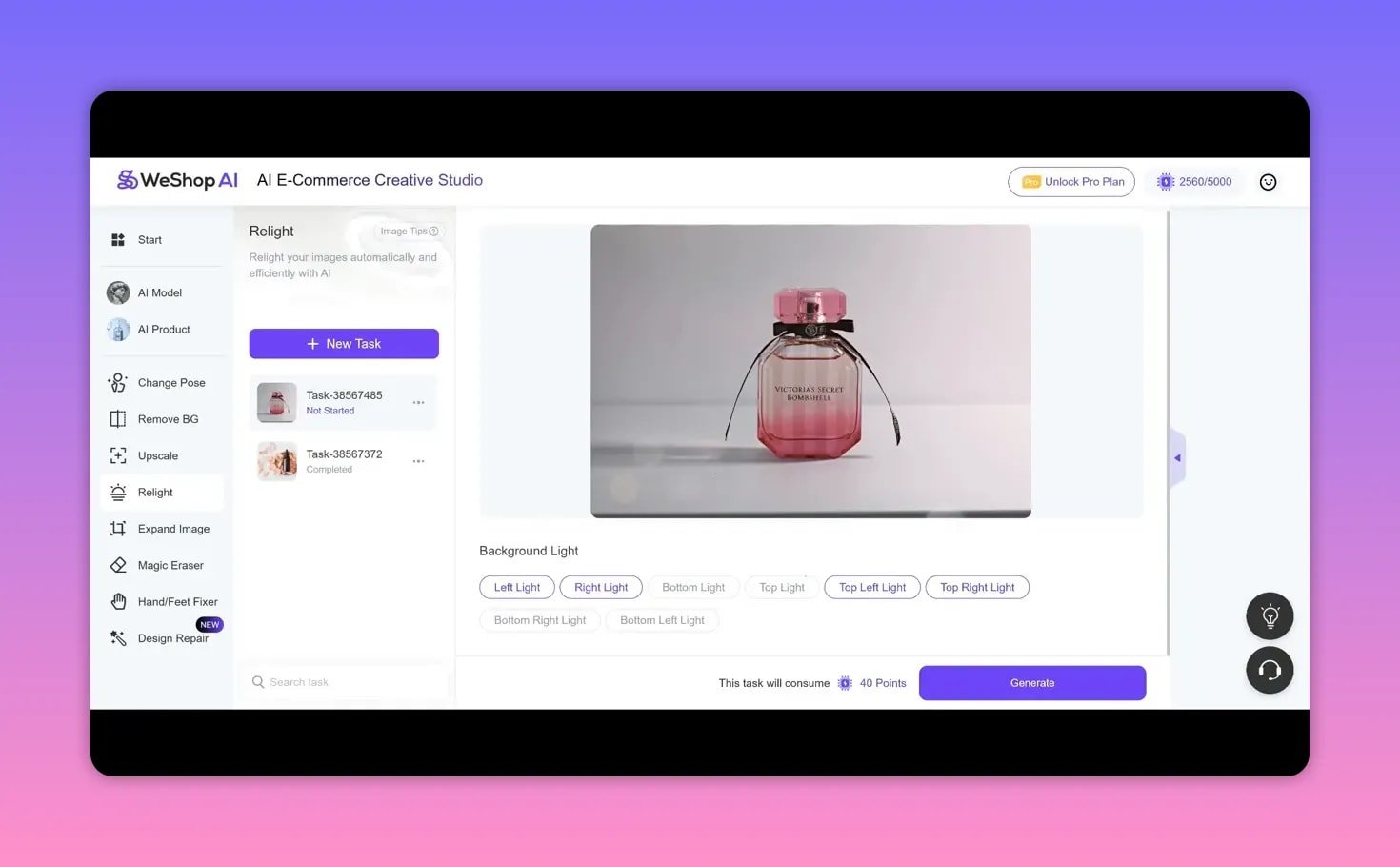
Relight
Change the apparent lighting angle to match a new background or to emphasize product highlights. This can drastically improve perceived production value.
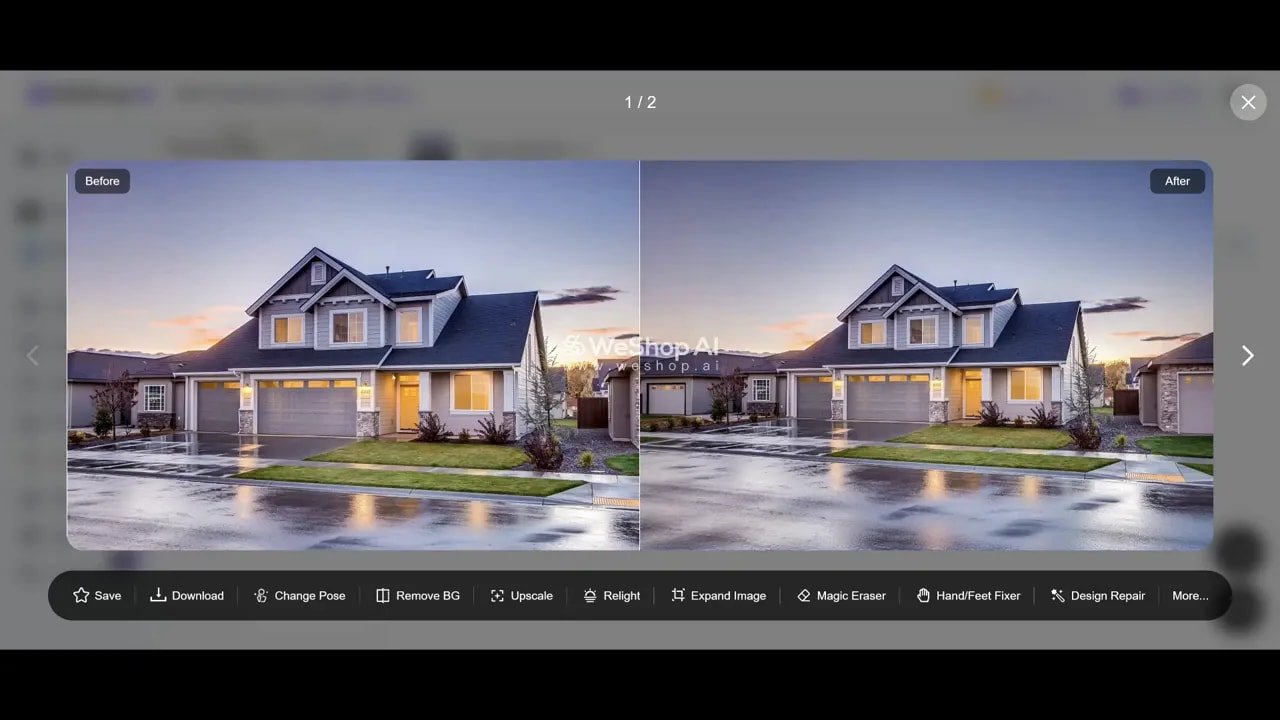
Expand Image
Automatically predicts and generates content beyond the original frame. Handy for generating banner sizes or adding negative space for text overlays.
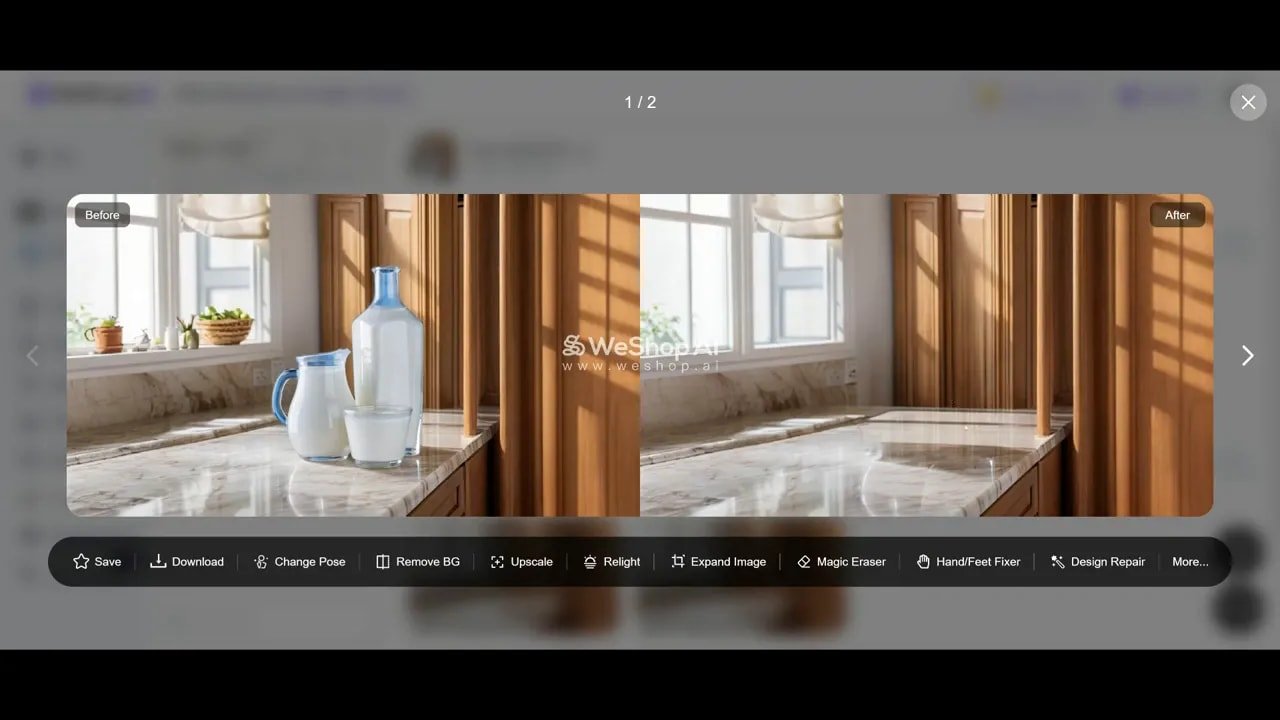
Magic Eraser
Removes unwanted items and clutter. It works best with careful masking, but occasionally fills removed areas with imperfect content — some manual touch-ups can help.
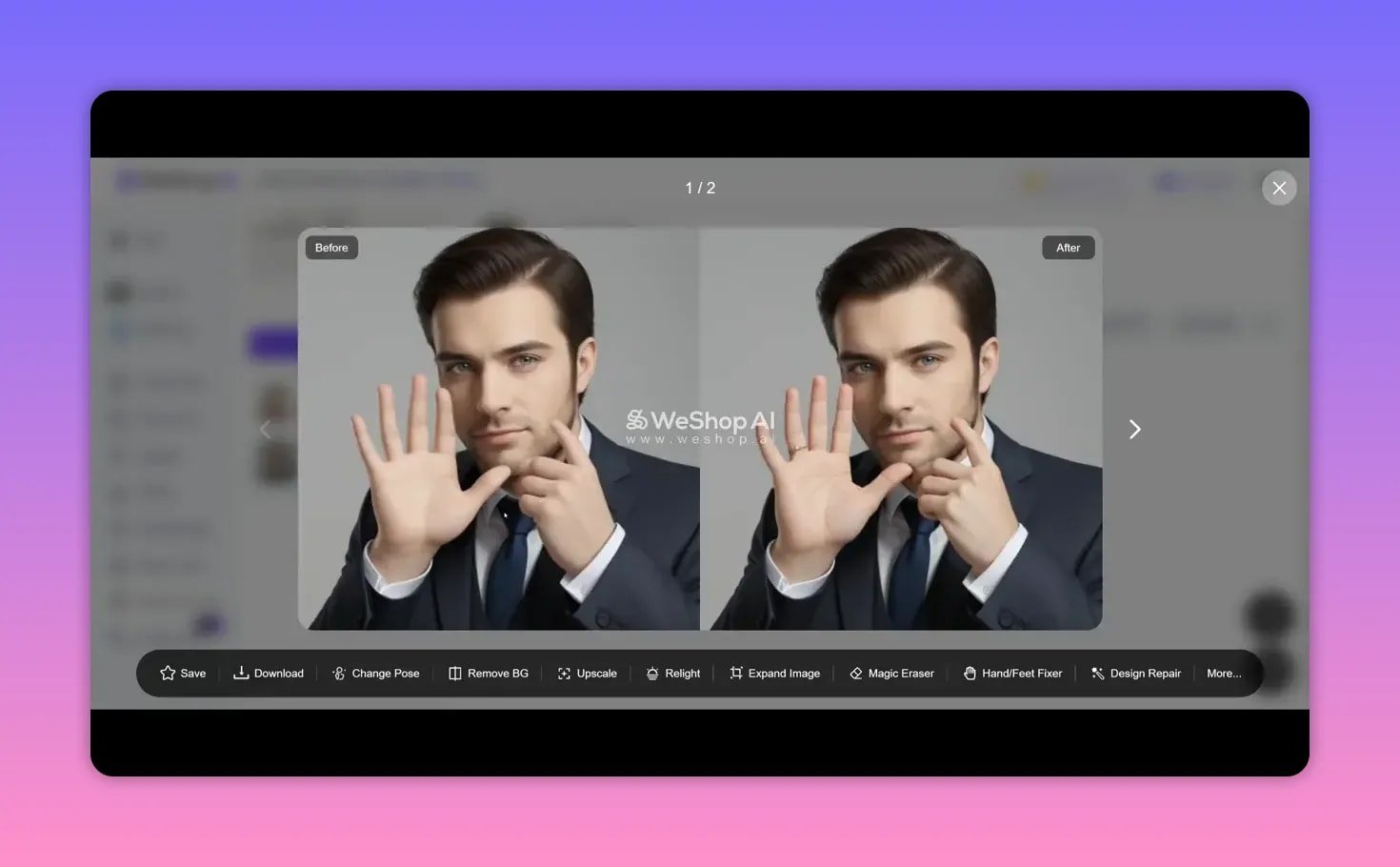
Hands and Feet Fixer
AI-generated hands are notoriously tricky. This tool repairs distortions and makes fingers and nails look realistic — a must when your images include models holding products.
Design Repair
Replace logos, badges, or small graphics on clothing or caps by brushing the area and providing a reference image. Results vary depending on input quality, but the idea is powerful for mockups.

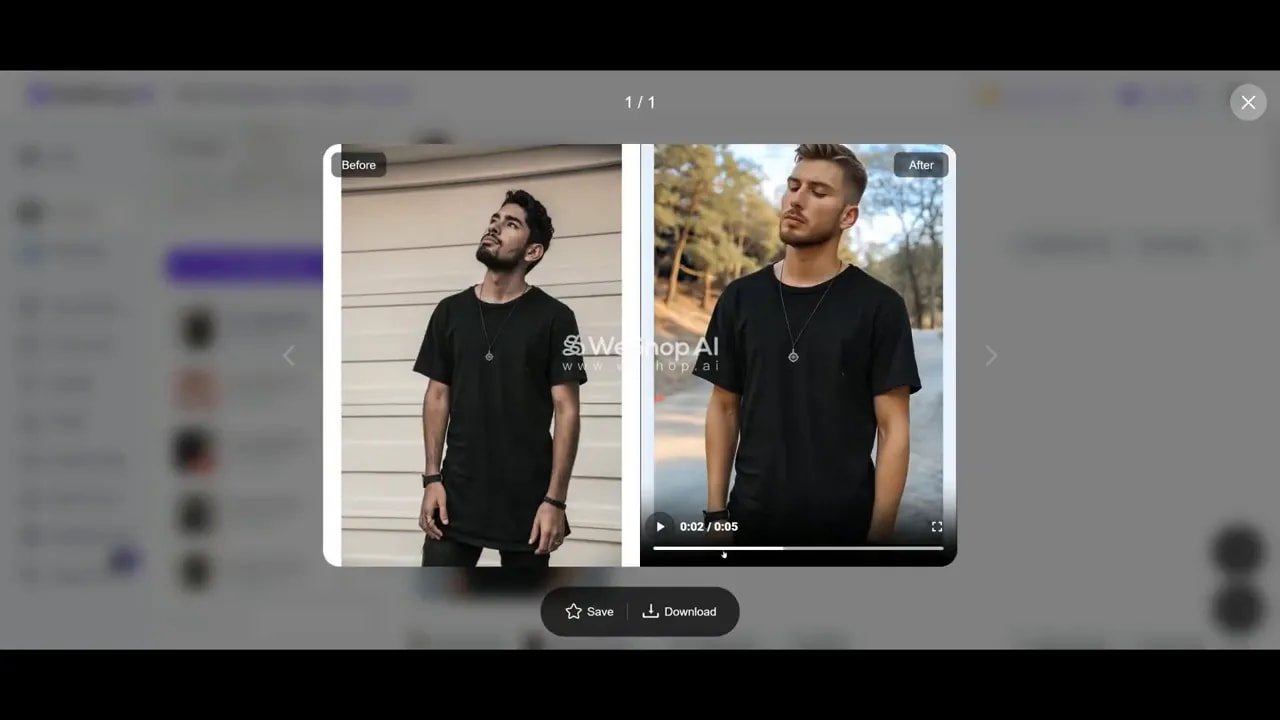
AI Video Generation
Generate short five-second clips that animate models and backgrounds. The output can be surprisingly convincing for social ads, but expect higher credit consumption compared with still images.
⚙️ Typical workflow for an e-commerce product
- Remove the original background to isolate product or model.
- Place the subject into a commercial location or branded scene.
- Adjust pose if you need a different composition.
- Relight to match the new scene.
- Upscale for final assets and export multiple sizes for web, social, and ads.

💳 Pricing, credits and who should buy it
Weshop runs a credits model where each action consumes points. Video generation is the most expensive (around 600 credits per clip). Typical image generations use between 10 and 30 points depending on settings and batch size.
AppSumo currently offers lifetime deals with tiers ranging from 2,000 credits per month on the entry plan up to 100,000 credits for higher tiers. There is a 60-day money-back guarantee on AppSumo purchases.

This tool is ideal for:
- E-commerce owners and dropshippers who need scalable visuals.
- Marketers who want quick mockups for ad creative.
- Designers who need fast drafts before manual polishing in Photoshop.
✅ Pros, ❌ Cons and my verdict
Pros:
- Speed: Produce multiple commercial-ready images in minutes.
- Range of tools: Most e-commerce needs are covered in one place.
- Good tutorials and support: Frequent blog posts and a responsive team make onboarding easier.
- Mobile access: iOS and Android apps that sync with the web account.
Cons:
- Certain tools need polish: Magic Eraser and design repair can be inconsistent depending on the input.
- Credits add up: Video generation eats credits quickly on lower tiers.
- Occasional odd artifacts: Some automatic edits need a manual pass to be perfect.
Verdict: Weshop AI is a solid, practical tool for anyone that needs scalable product imagery without constant photoshoots. The outputs are already very usable for stores, social ads and mockups. Expect to combine AI automation with occasional manual clean-up for best results.
❓ Frequently asked questions
What image file types and sizes does Weshop support?
PNG, JPG and WebP are supported. Custom model uploads typically accept up to four images at 5 MB each; bulk uploads for tasks allow larger batches with a 20 MB per-file guideline in some flows.
How many credits do common actions cost?
Credit usage varies by feature. Expect around 10 to 30 points for image generations, about 10 points for background removal and upscaling tasks, 50 points for relighting, and roughly 600 points for a single AI video. Check your plan for exact rates.
Can I generate short videos with my models?
Yes. Video generation is available in beta and produces short clips that animate models and backgrounds. It consumes significantly more credits than still images.
Is there an app for mobile use?
Yes. iOS and Android apps sync with your web account. The mobile app offers most core features but the web app still provides the full toolset.
How do I get the best model results?
Upload multiple high-quality headshots, choose the appropriate face style (Natural vs Influencer), set pose percentages consciously, and provide clear reference backgrounds. If a result is off, try different prompts or upload a cleaner reference.
Does Weshop offer tutorials and support?
Yes. The platform includes step-by-step tutorials for each tool, regular blog posts showing examples, and a feature request area where the team collects user feedback and implements updates.