Table of Contents
- 🧭 Getting started with PlanPros.ai
- 📚 Connect, learn, and find resources
- 📝 Create your first business plan
- ✅ Fill the sections with clarity
- 🎯 Marketing and promotions — let AI suggest strategies
- 👥 Build your team quickly with LinkedIn import
- 💸 Financials and investment ideas
- 📥 Generate, review, and download your plan
- 💡 Practical tips and best practices
- ❓ FAQ
🧭 Getting started with PlanPros.ai
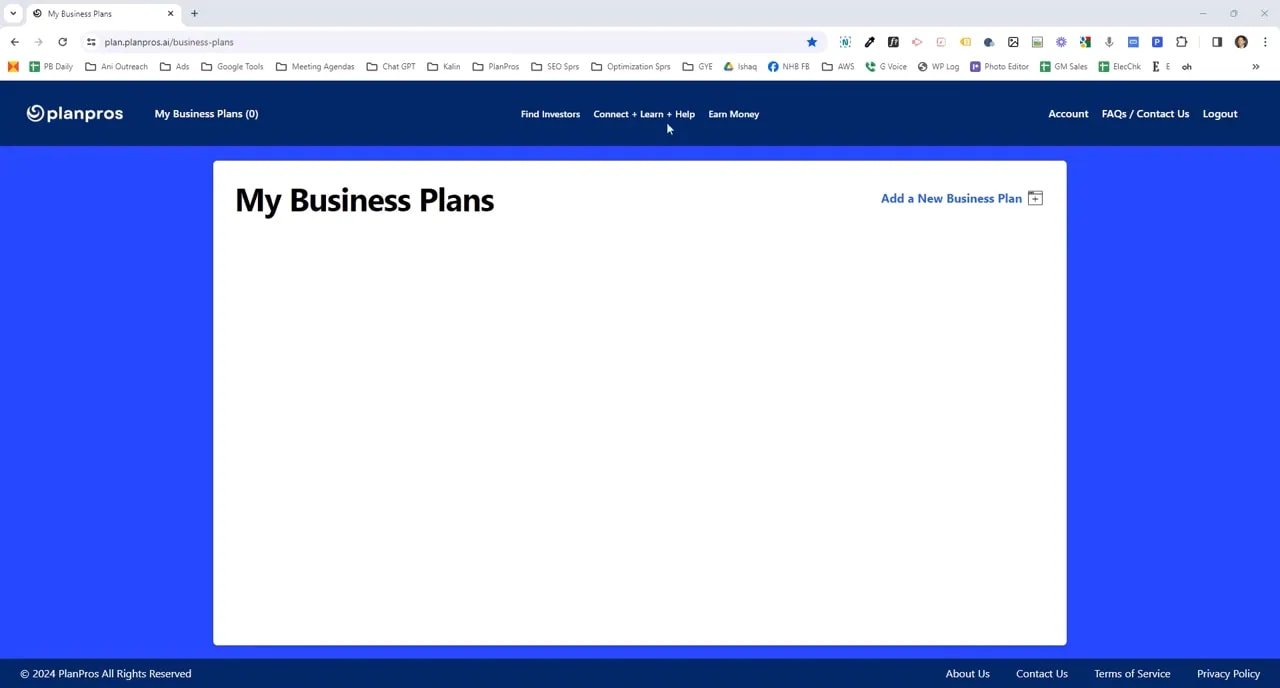
If you need a business plan that investors will actually read, PlanPros.ai gets you there fast. I walk through the app like this: top navigation gives you quick access to Connect, Learning, and Help—everything you need to learn, ask questions, and get support as you build your plan.
📚 Connect, learn, and find resources
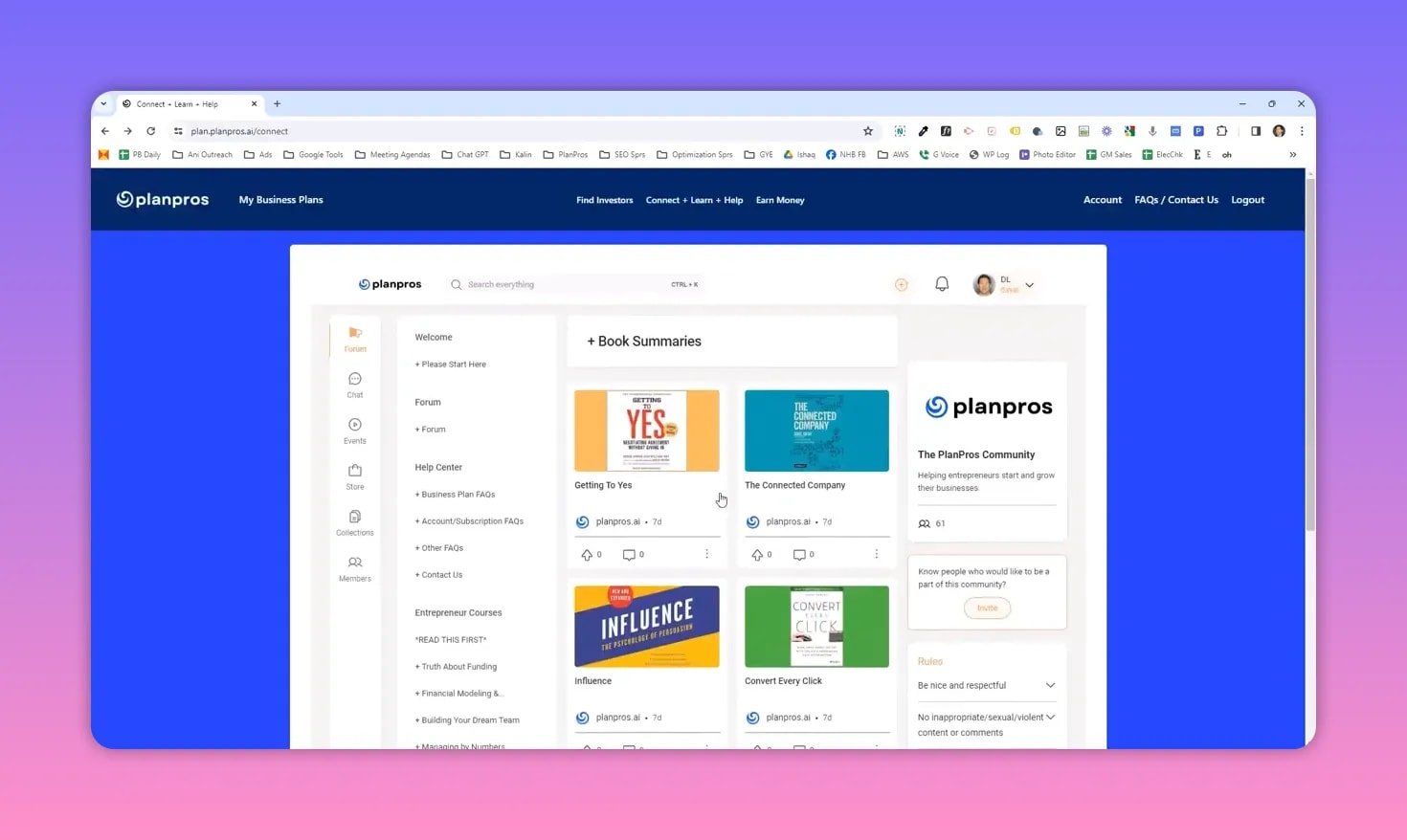
The Connect & Learn area is where you build knowledge and find community support. Key features include:
- Start Here — orientation for the platform and how to use the main features.
- Forum — ask productivity and growth questions and get input from members.
- Help Center — how-to articles and a 20-minute walkthrough that covers the business plan feature in detail.
- Entrepreneur courses — premium lessons on funding, financial modeling, team building, outsourcing, profit optimization, and PR.
- Book summaries — quick chapter-by-chapter digests of the most useful business books so you can learn fast.
📝 Create your first business plan
Creating a new plan is click-and-type simple. Click “Add a new business plan,” give it a name (company name is typical), then follow the prompts. You choose a cover design and decide what contact details appear on the cover.
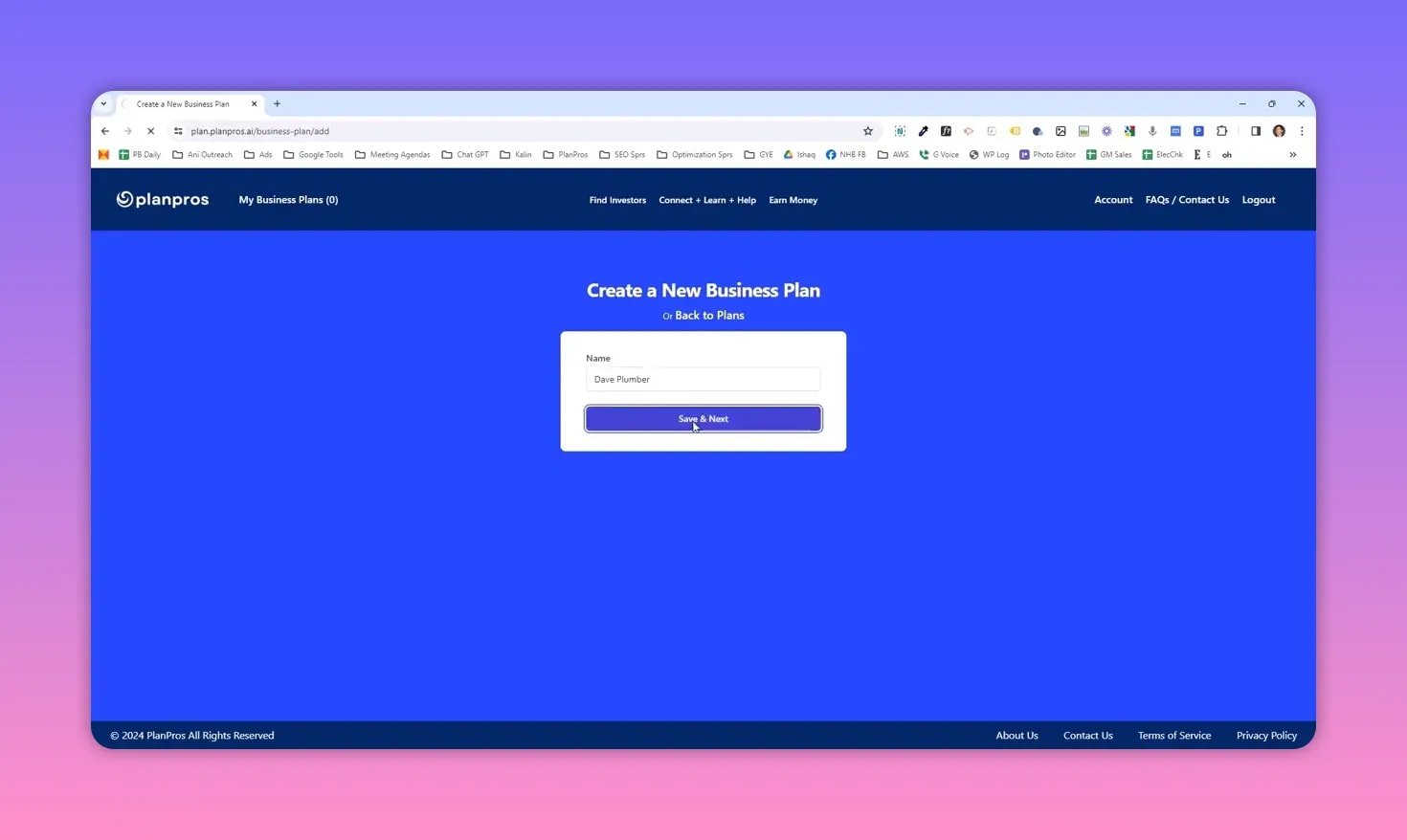
Every page asks one or two straightforward questions about your company. Enter short answers, hit “Save” and “Next,” and move on. The interface uses tooltips on any confusing fields so you never feel stuck.
✅ Fill the sections with clarity
The plan walks through standard sections: business description, products and services, geographic region, customers, and competition. Keep answers concise and factual. Examples you can use directly:
- Business type: cupcake bakery or tattoo removal service
- Brief description: one sentence summary of what you do and why it matters
- Products and services: list top offerings and pricing approach
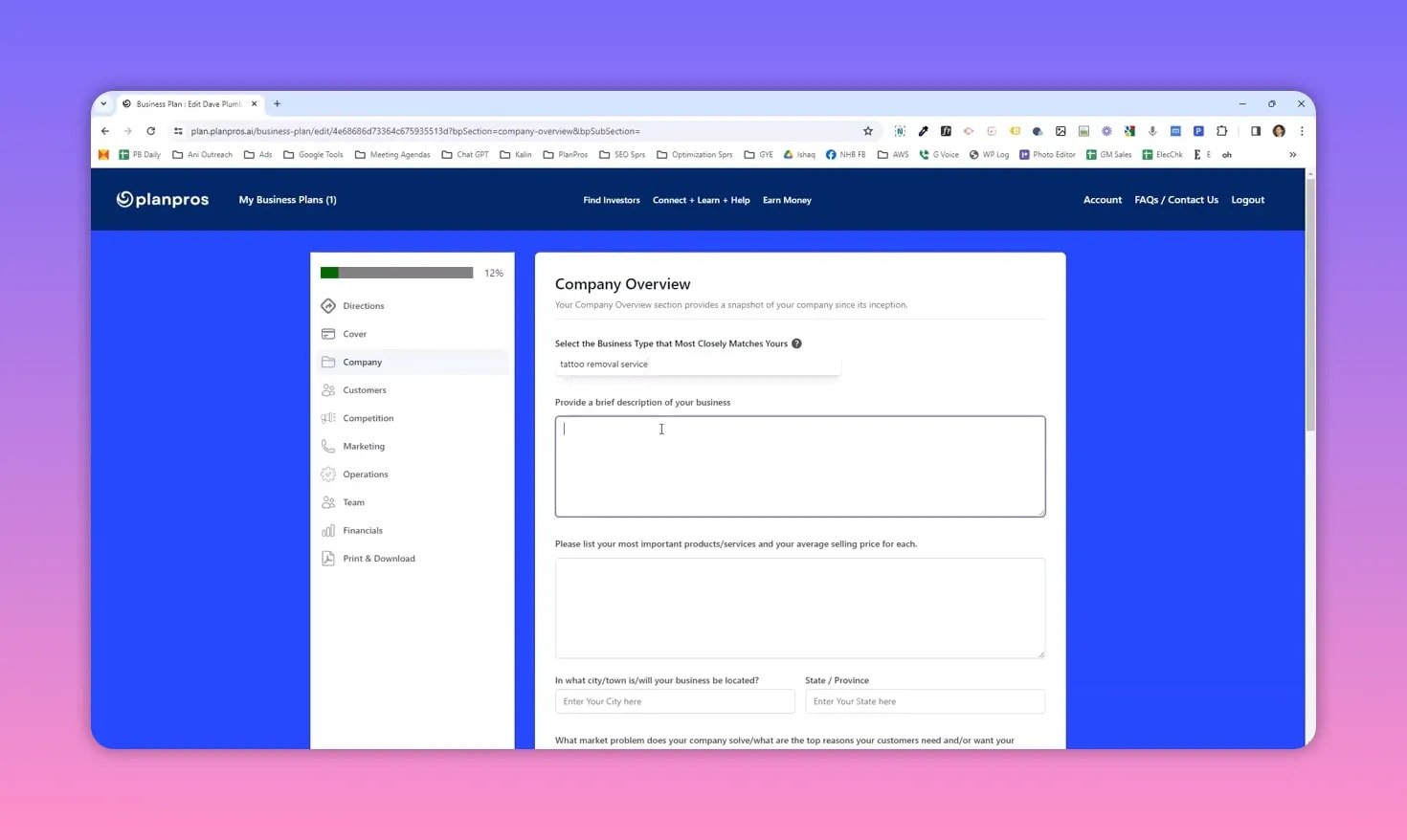
Small notes: tooltips answer most questions, and you can always return later to edit any section.
🎯 Marketing and promotions — let AI suggest strategies
When you reach Promotions, select one or two promotional methods and let the AI expand them into a full promotional plan. The AI recommends the best channels based on your business type and the inputs you provided.
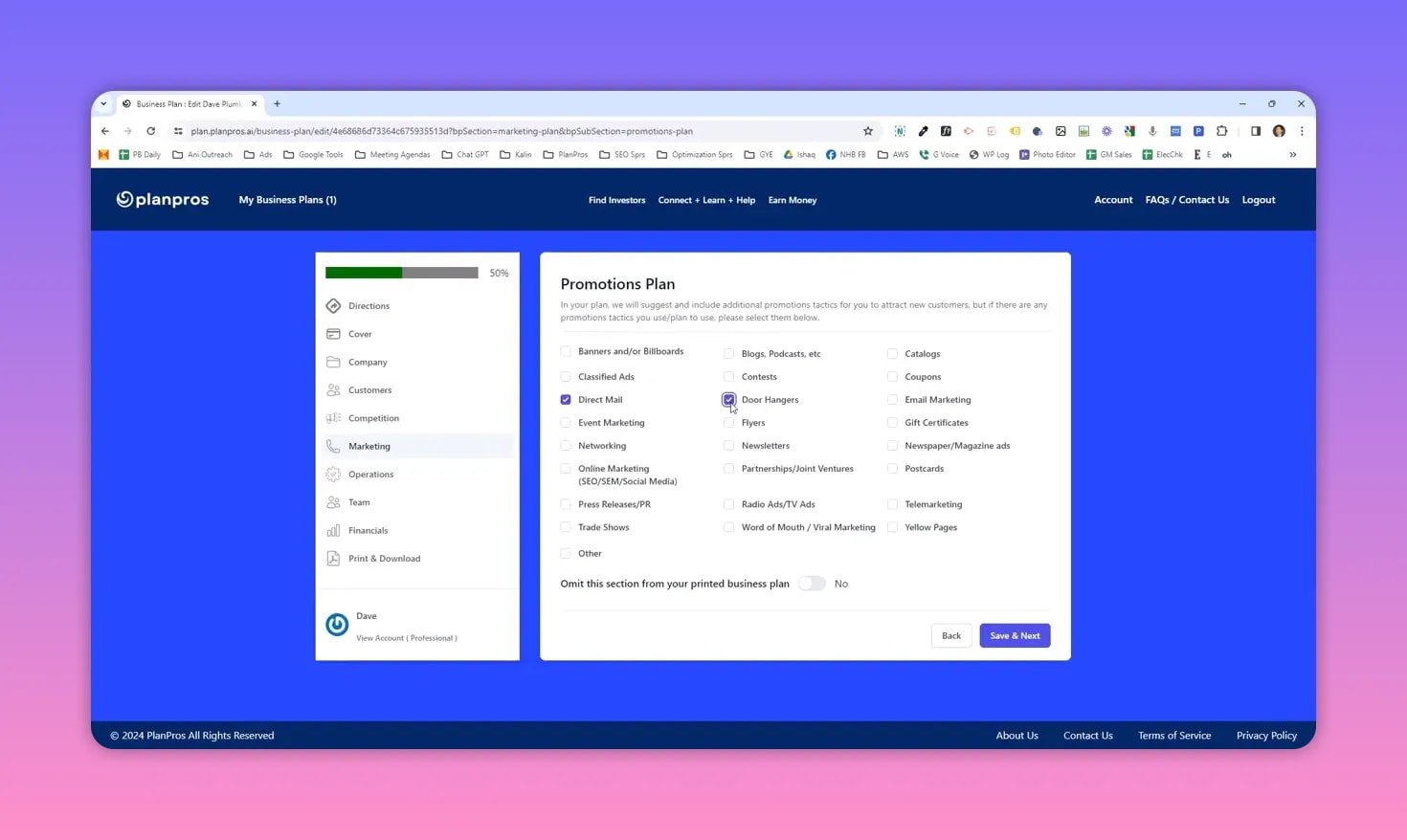
This approach saves time while giving you realistic, targeted promotional ideas you can execute or refine.
👥 Build your team quickly with LinkedIn import
Adding a team is as simple as clicking “Add team member” and typing a title and background. For speed, paste a LinkedIn profile URL and the app will pull the bio and summarize it for your plan.
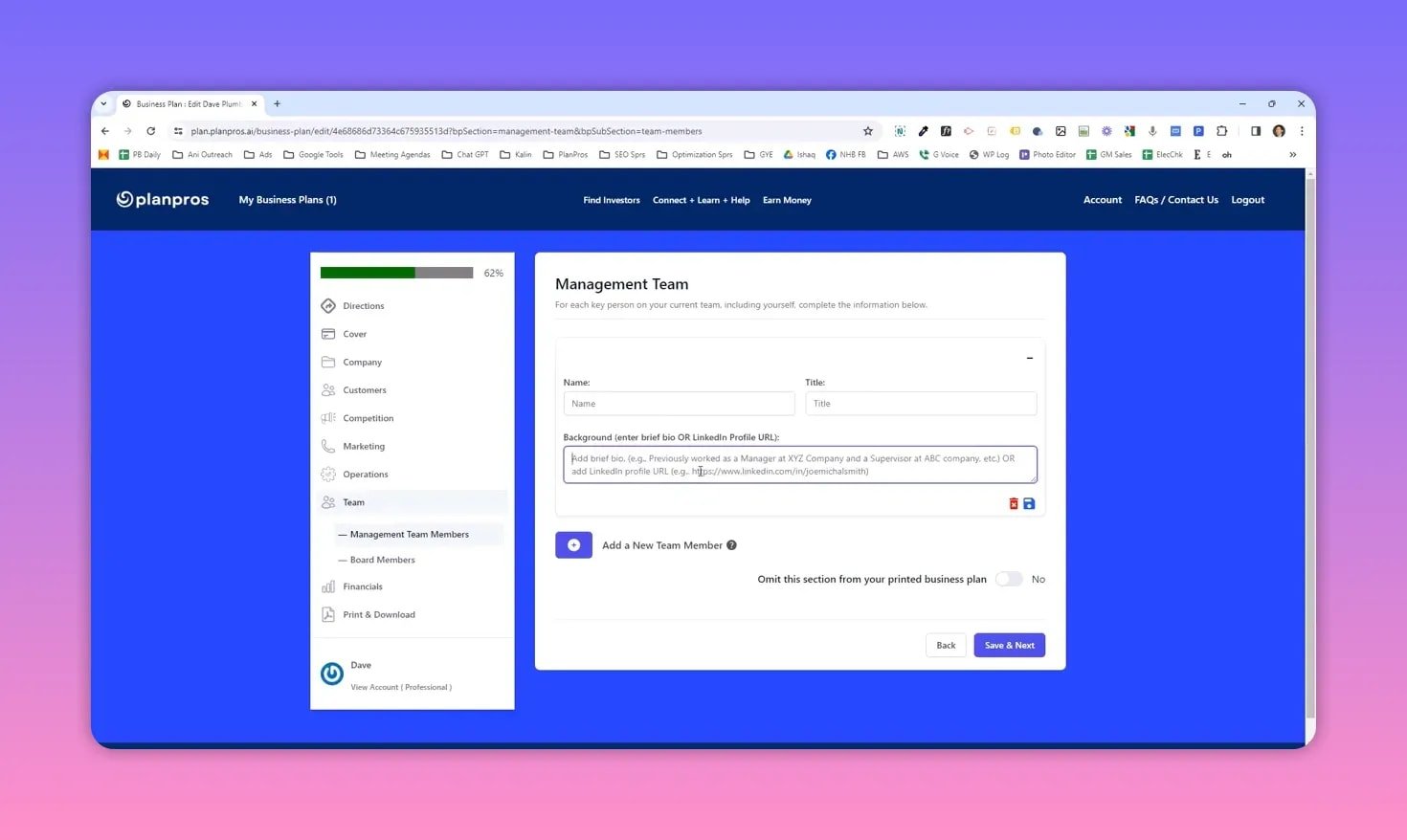
That LinkedIn import helps you create professional team bios without retyping resumes.
💸 Financials and investment ideas
Financials are where the platform shines. Enter product/service details like monthly unit sales, average price, cost, and expected growth rate. PlanPros.ai then produces five-year financial projections automatically.
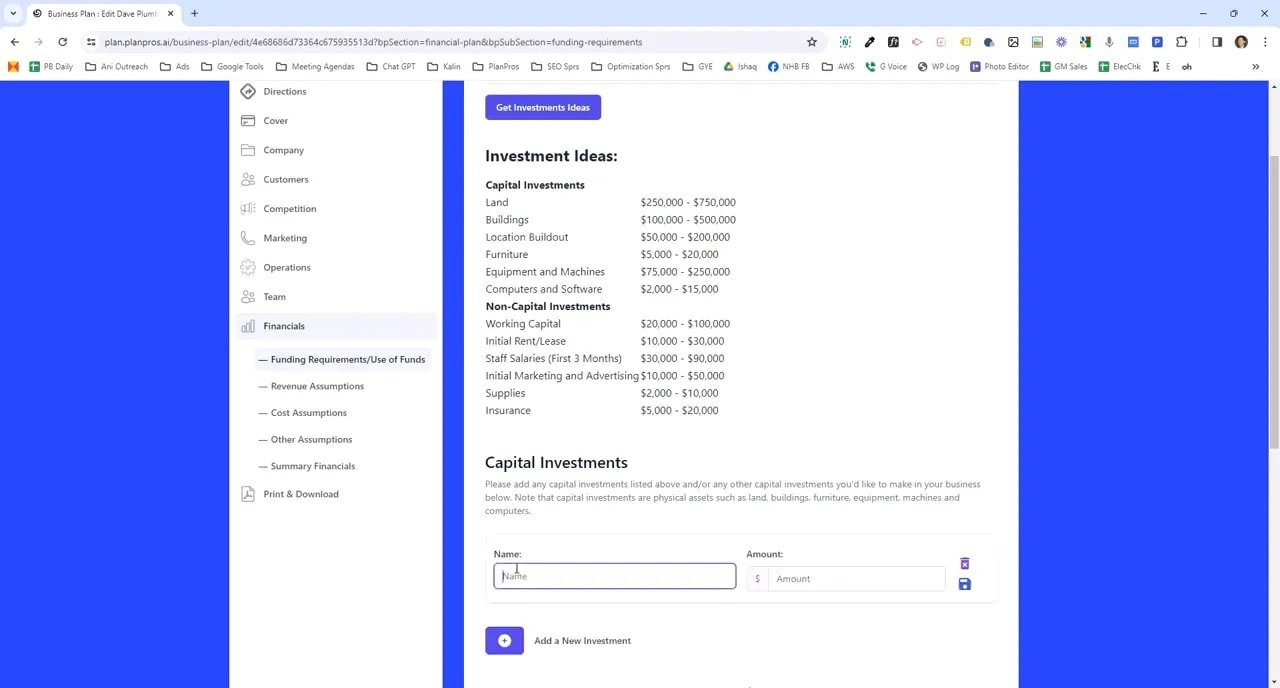
If you do not know what capital you need, click Get Investment Ideas. Based on the information you already entered, it lists likely capital and non-capital investments (for example, location build-out versus furniture) with estimated ranges.
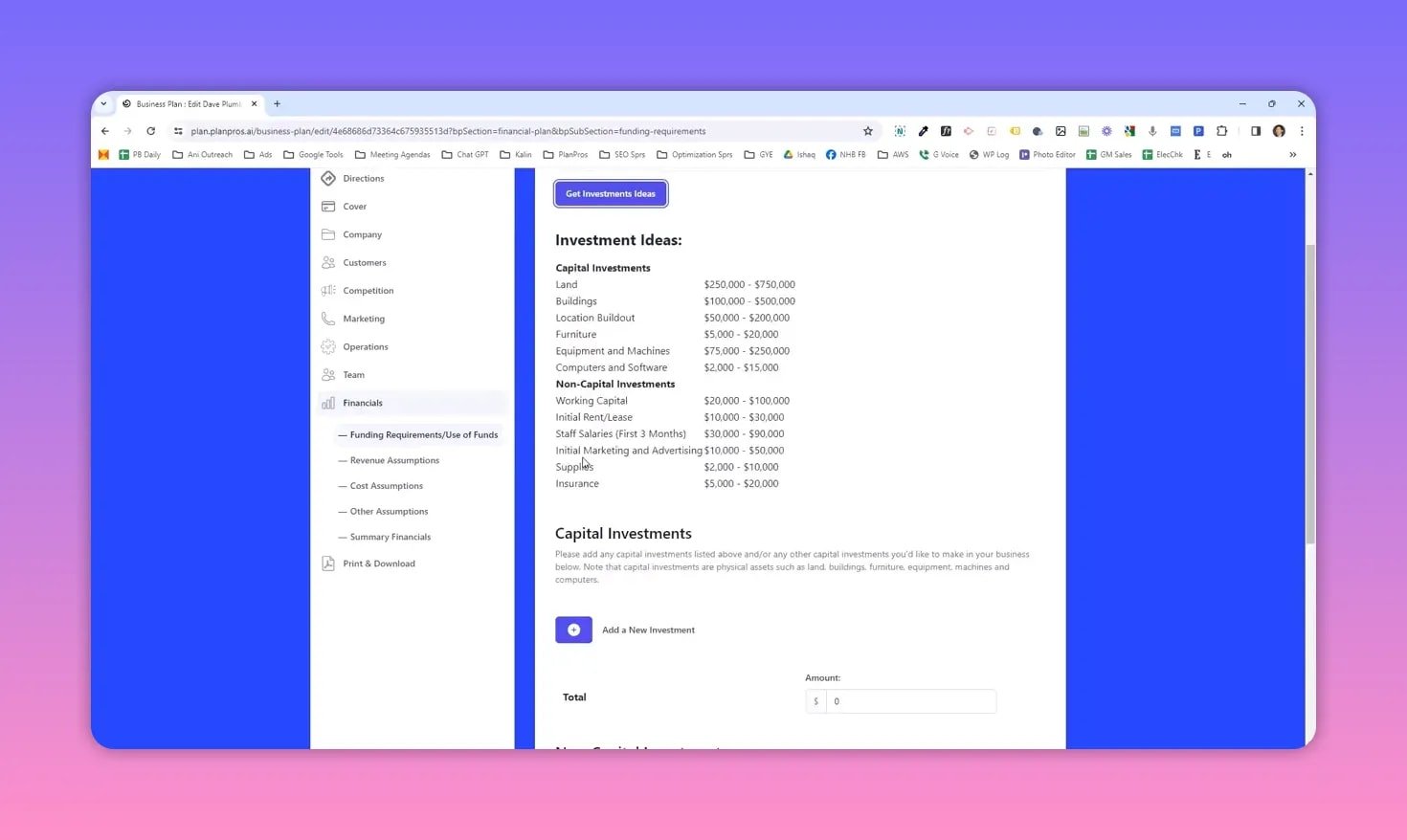
PlanPros.ai separates capital investments from non-capital investments and explains depreciation impacts so your financial statements are accurate.
📥 Generate, review, and download your plan
When you hit Generate Business Plan, the platform compiles all sections and produces an executive summary that reflects your inputs. Wait for the generation progress to reach 100 percent, then skim each section and confirm that names and specifics appear correctly in the executive summary.
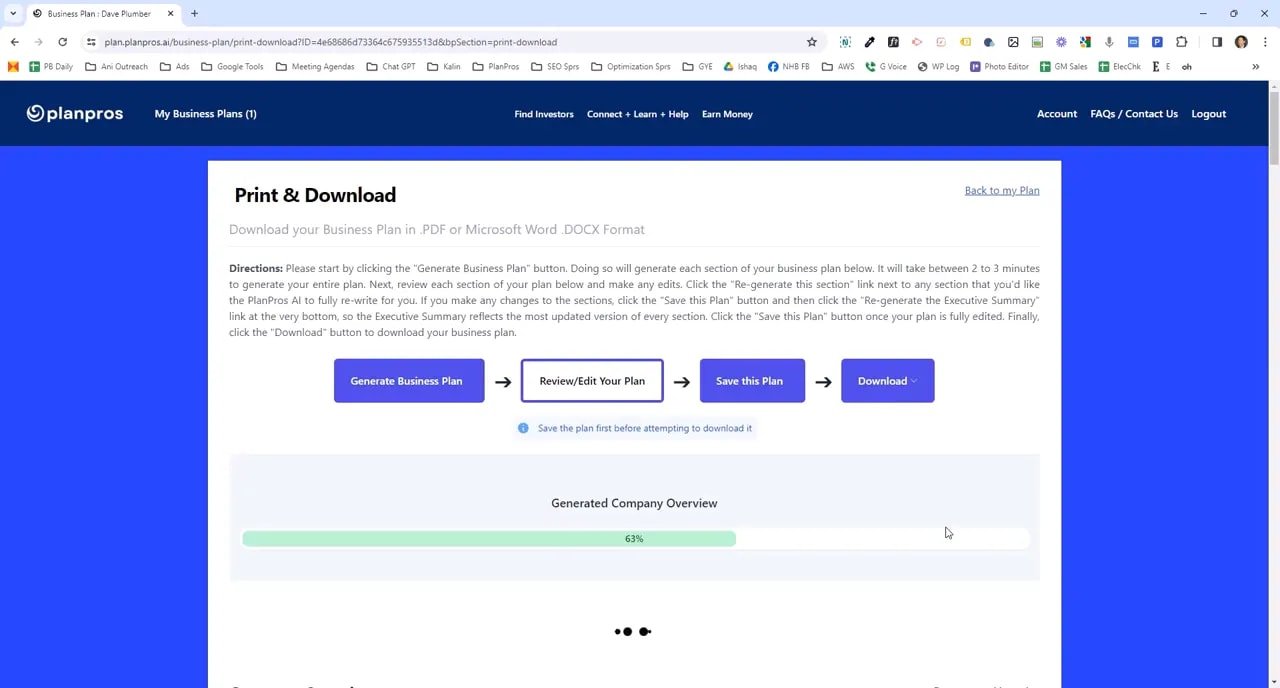
If a section doesn’t read the way you want, use the Regenerate this section option to produce an alternative version, then save again. Always save your plan before leaving the page.
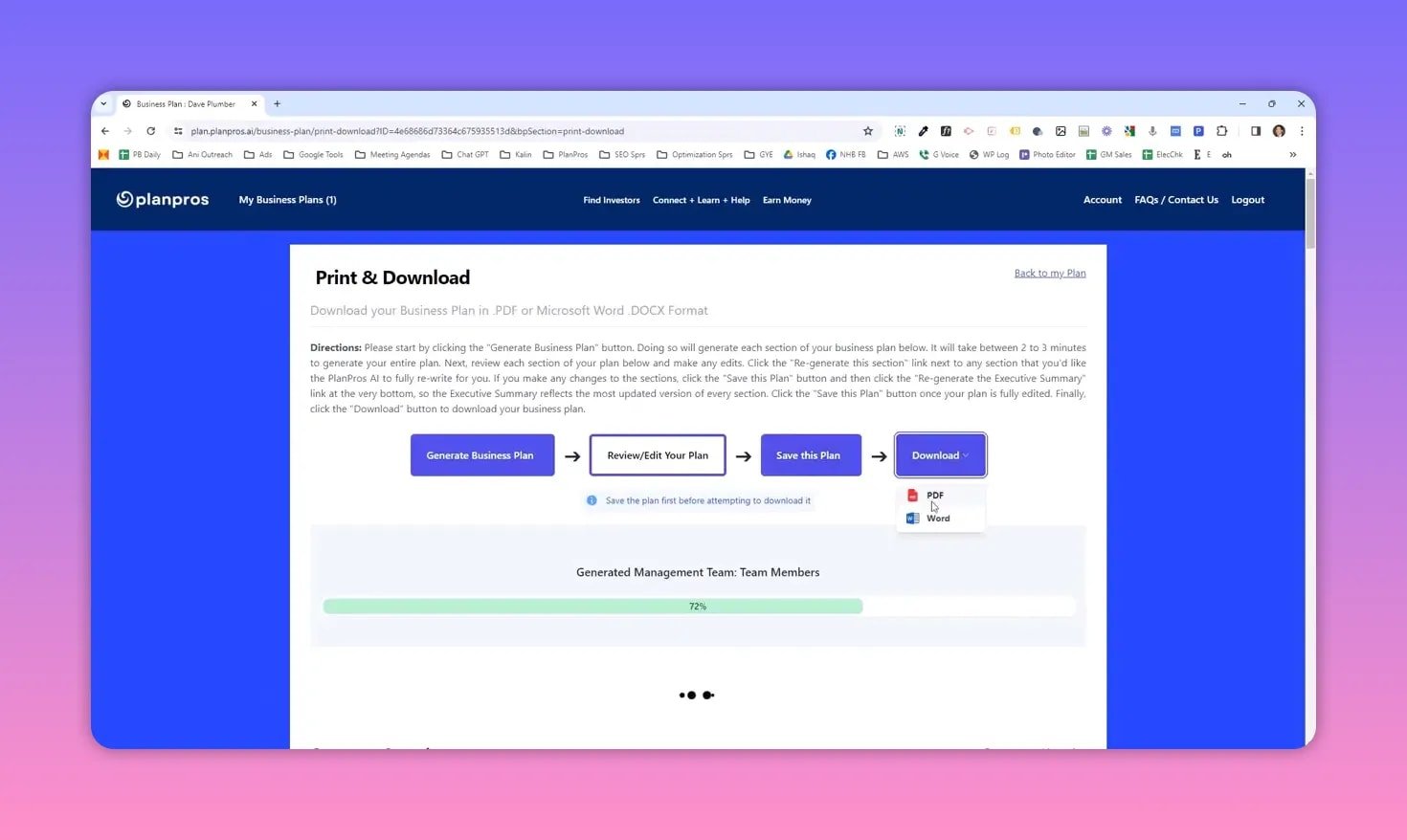
Export options include Word and PDF depending on your subscription level. Download the final plan and use it for investor meetings, bank applications, or internal planning.
💡 Practical tips and best practices
- Start with concise inputs — short, specific answers produce cleaner AI-generated text.
- Use tooltips — they explain ambiguous fields and guide accurate inputs.
- Run Regenerate selectively — regenerate only sections you want rewritten so you keep the best content.
- Save often — save before generating and again after the executive summary updates.
- Review financial assumptions — default growth rates are fine for a first draft; customize them for investor-facing plans.
- Use LinkedIn import for team biographies to keep bios professional and consistent.
❓ FAQ
Is PlanPros.ai suitable for startups and small businesses?
Yes. The platform generates a full business plan and five-year financial projections based on simple inputs, making it ideal for early-stage startups and small businesses preparing investor or lender materials.
What resources are available if I get stuck?
Use the Help Center, built-in tooltips, and the Connect forum to ask questions. There are also entrepreneur courses and a 20-minute walkthrough that explain the business plan feature end to end.
Can I import team member information from LinkedIn?
Yes. Paste a LinkedIn profile URL and PlanPros.ai will pull the bio and summarize it into a professional team entry for your plan.
How does the platform suggest investment needs?
Click Get Investment Ideas and the tool analyzes your business inputs to suggest capital and non-capital investments with cost ranges. It explains depreciation and how capital expenses affect financials.
Can I edit and regenerate sections of the plan?
Absolutely. You can edit any section manually, regenerate specific sections to get alternate wording, then save the plan to lock in changes.
What export formats are available?
Export options include Word and PDF. Available formats depend on your subscription level or plan type.